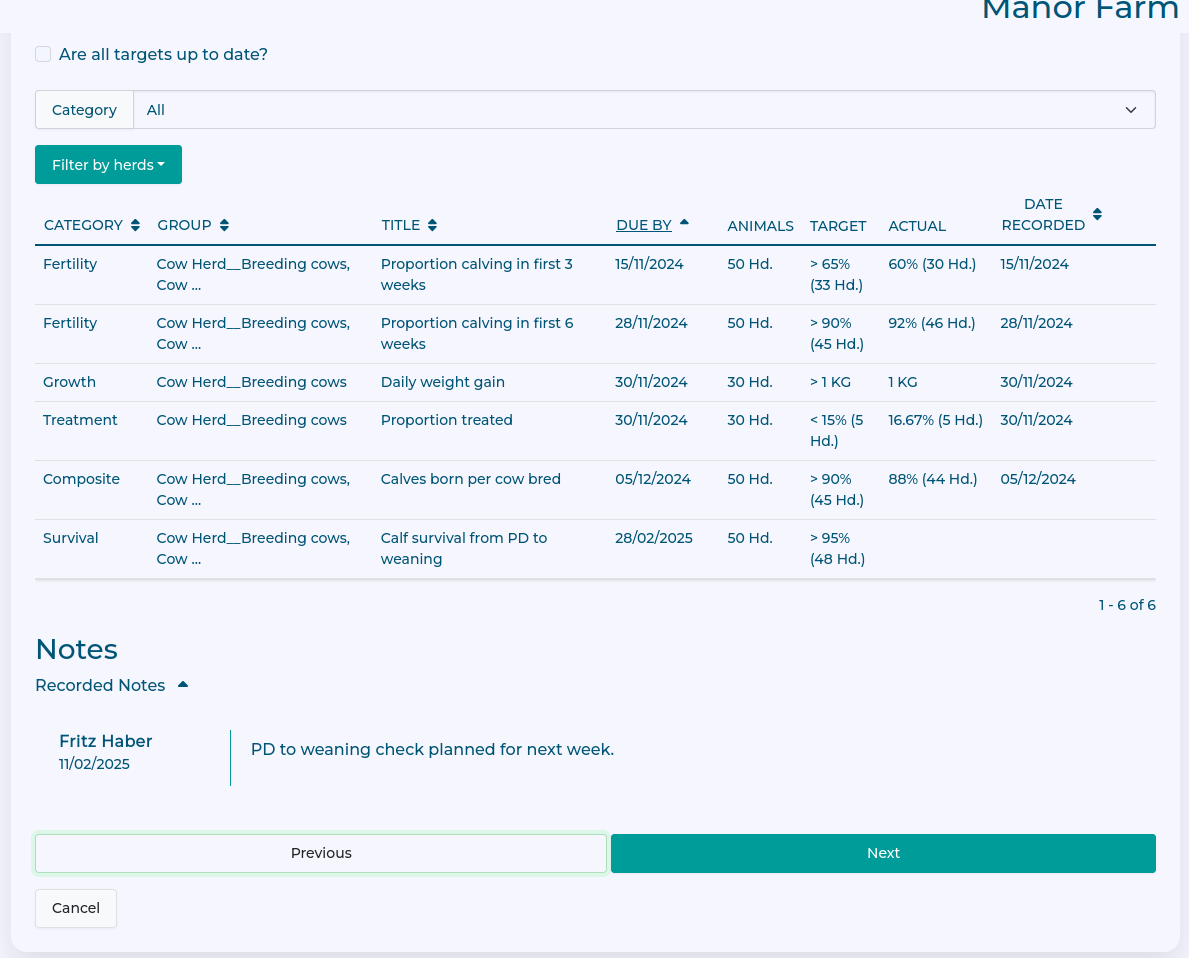
Team Catch Up
The Team Catch up meeting is an important process in HerdPlan. It gathers all the actions and targets from across all the modules and livestock groups and presents them in one place.
This makes it easy to review recent and upcoming activities on Farm with your farm staff and other stakeholders.
Essentially, it is a fixed agenda meeting, allowing you to update records, review activities, and record any notes or new actions that arise from the meeting in a straightforward process.
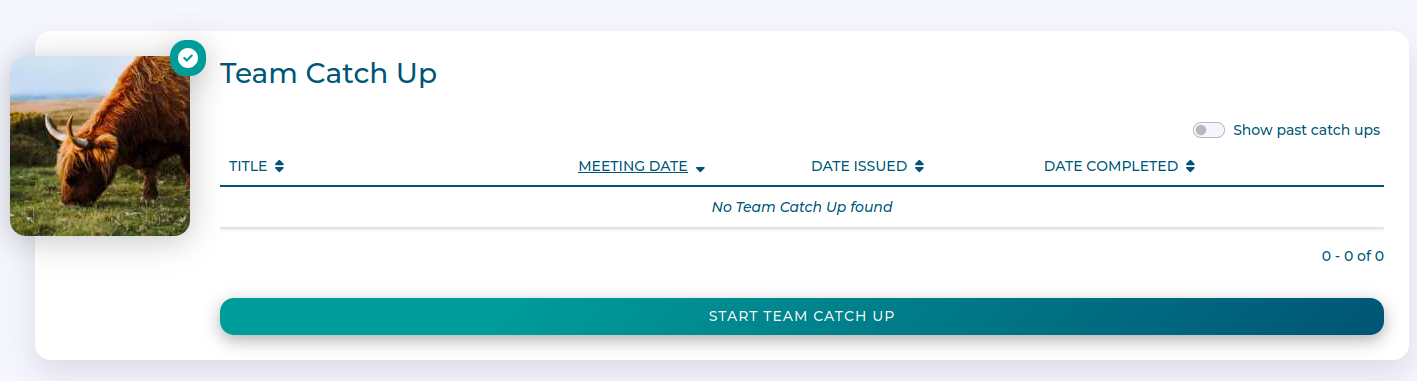
Process Overview
Workflow
Starting a Team Catch-up
Click Start Team Catch up to begin.
This brings up the team catch up form. There are four tabs, which you can navigate between by clicking on them, or by using the Next and Previous buttons at the bottom of the form:
Catch up (shown below)
Review Targets
Review Actions
Actions
On this first tab we record when the meeting is happening and who is attending, and who cannot attend.
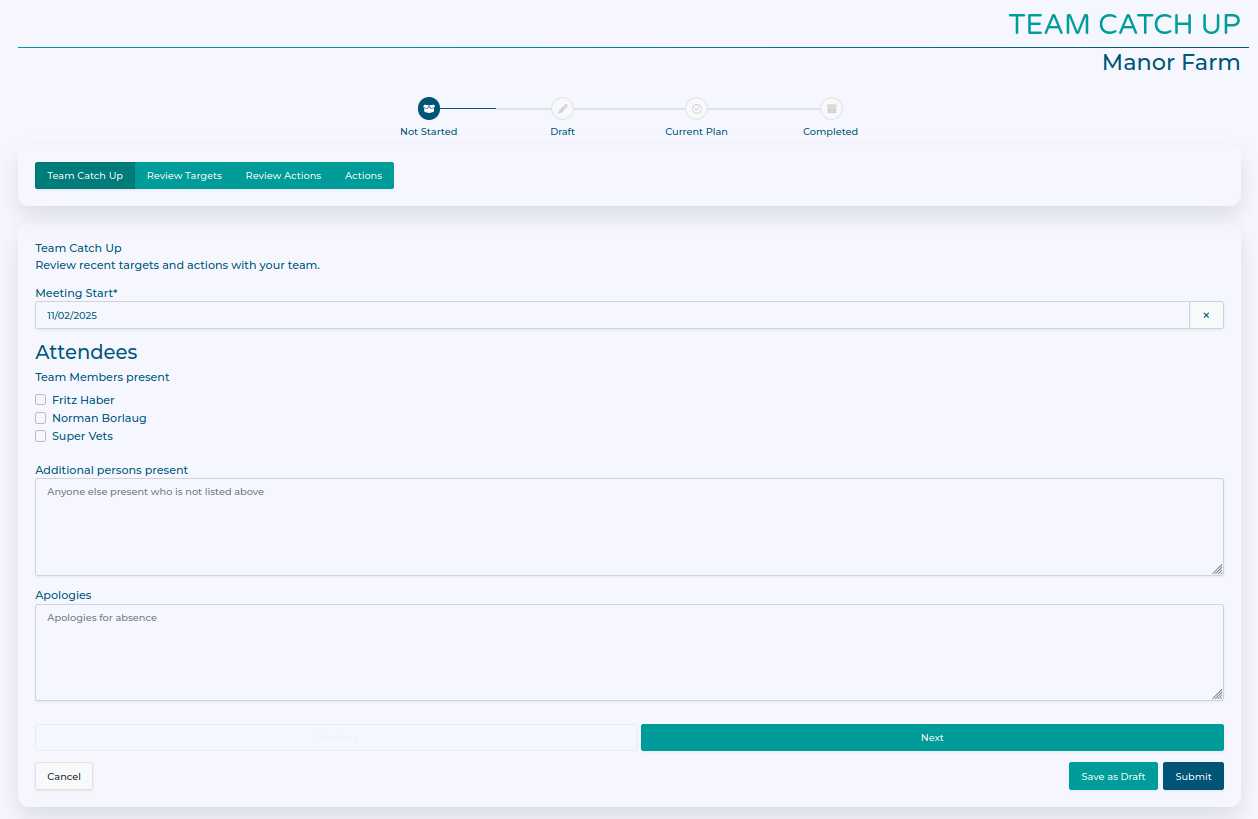
Once done click Next to advance to the next tab.
Reviewing Targets
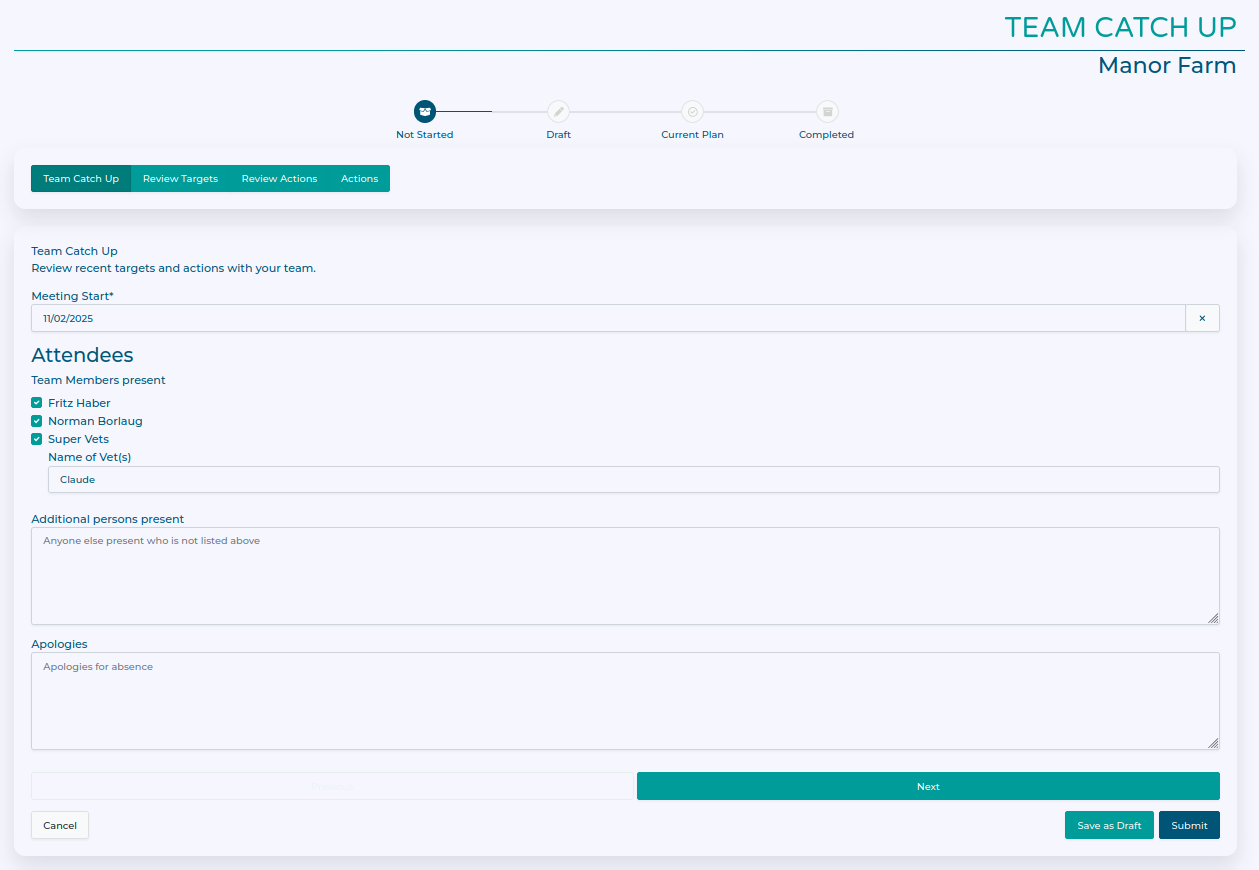
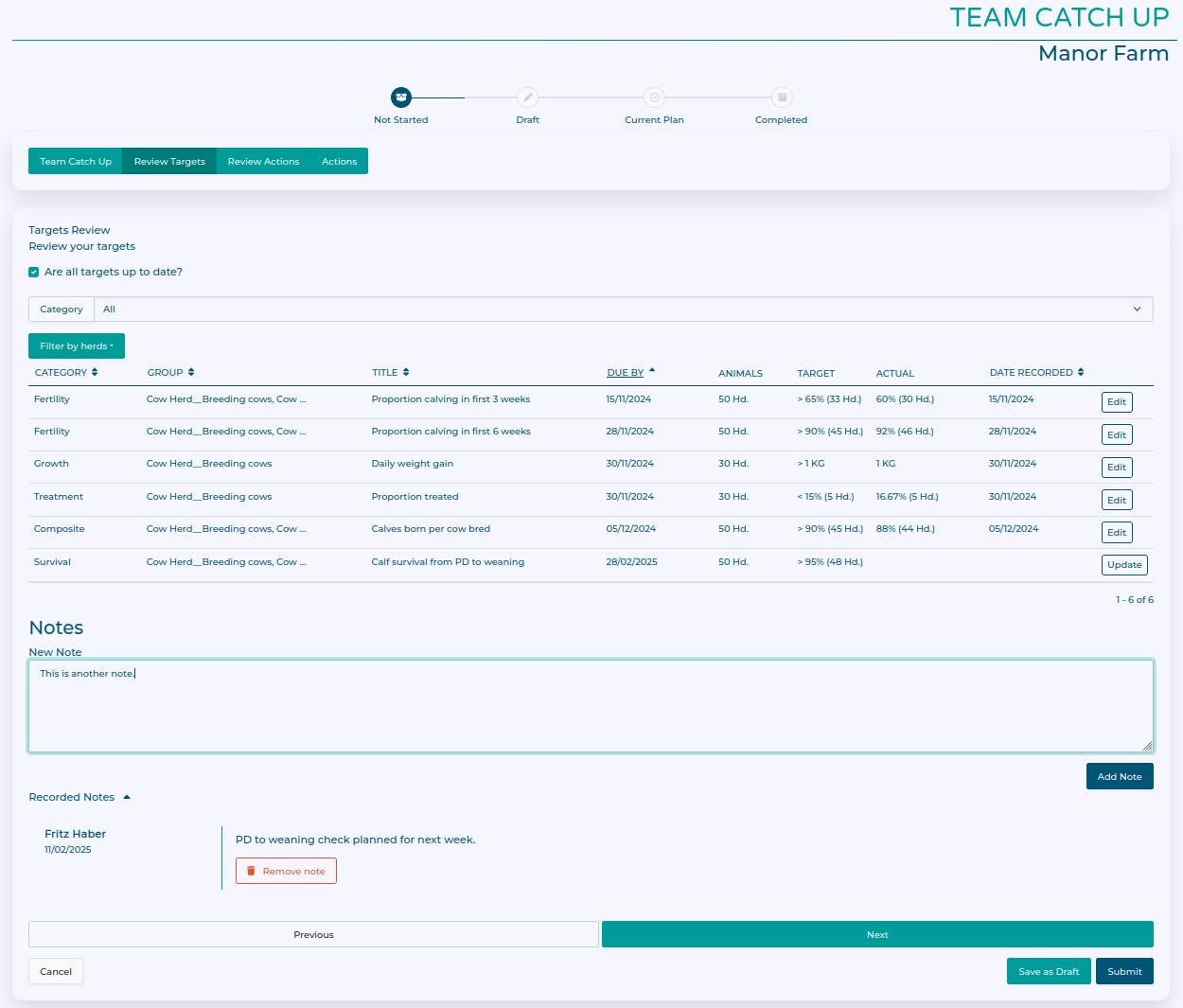
On the review targets tab we are presented with targets from all the health plan modules for the previous three months.
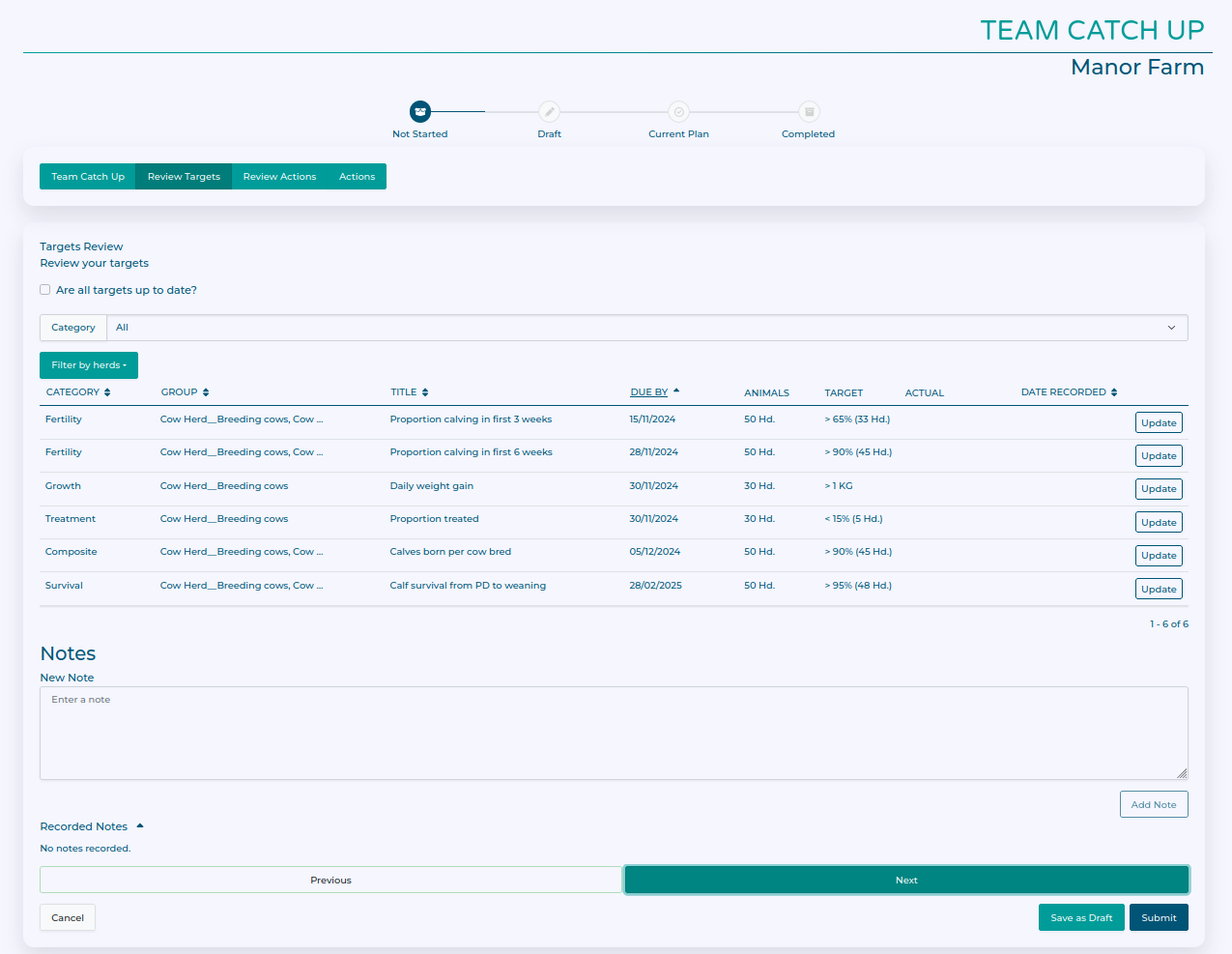
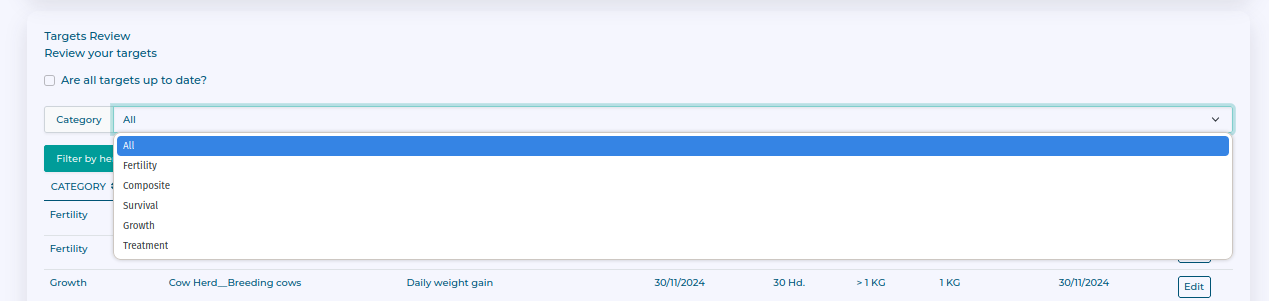
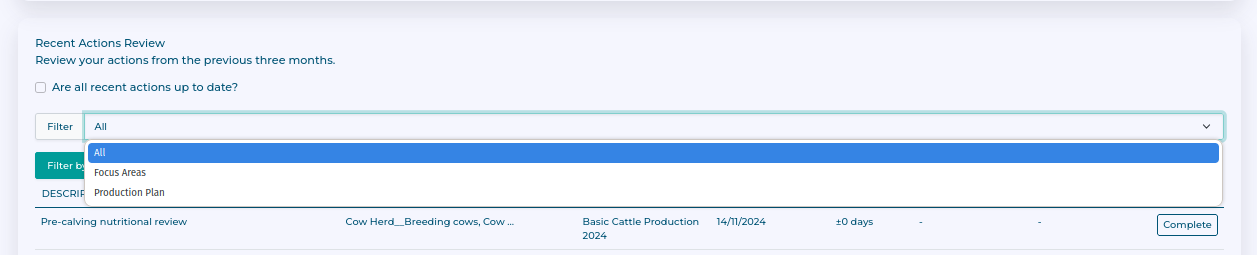
You can filter these down to specific modules with the dropdown. Or filter to specific herds with the Filter by herds button. This allows you to review targets more easily when discussing particular livestock groups or issues, rather than just dealing with them chronologically.
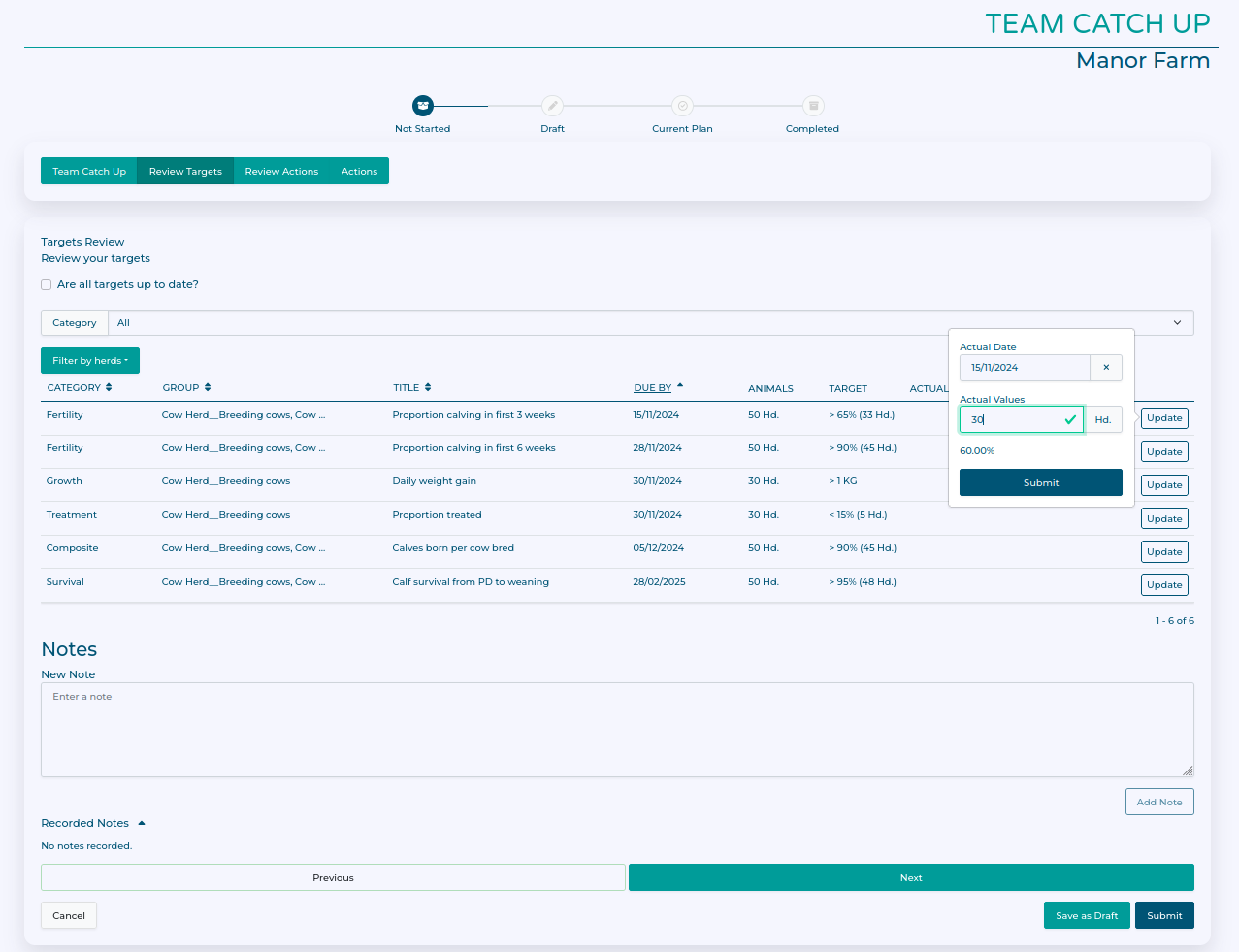
You can record any results that you have available directly from the targets table.
Once all available targets have been reviewed, check the Are all targets up to date? checkbox. You can add notes about any targets using the notes field at the bottom of the page. Type whatever information you want to record and then push Add Note to save it to the catch-up.
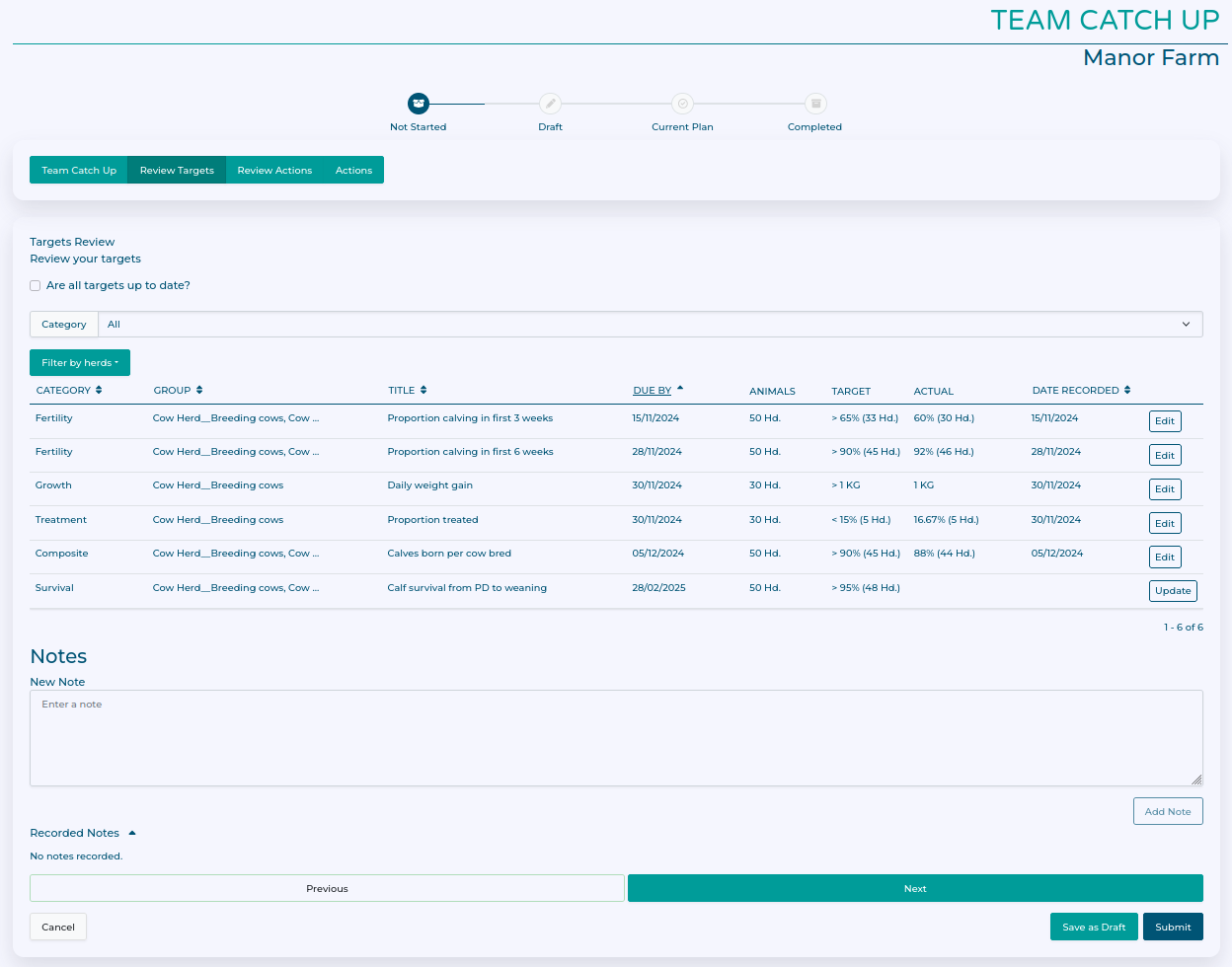
Click Next to advance to the Review Actions tab.
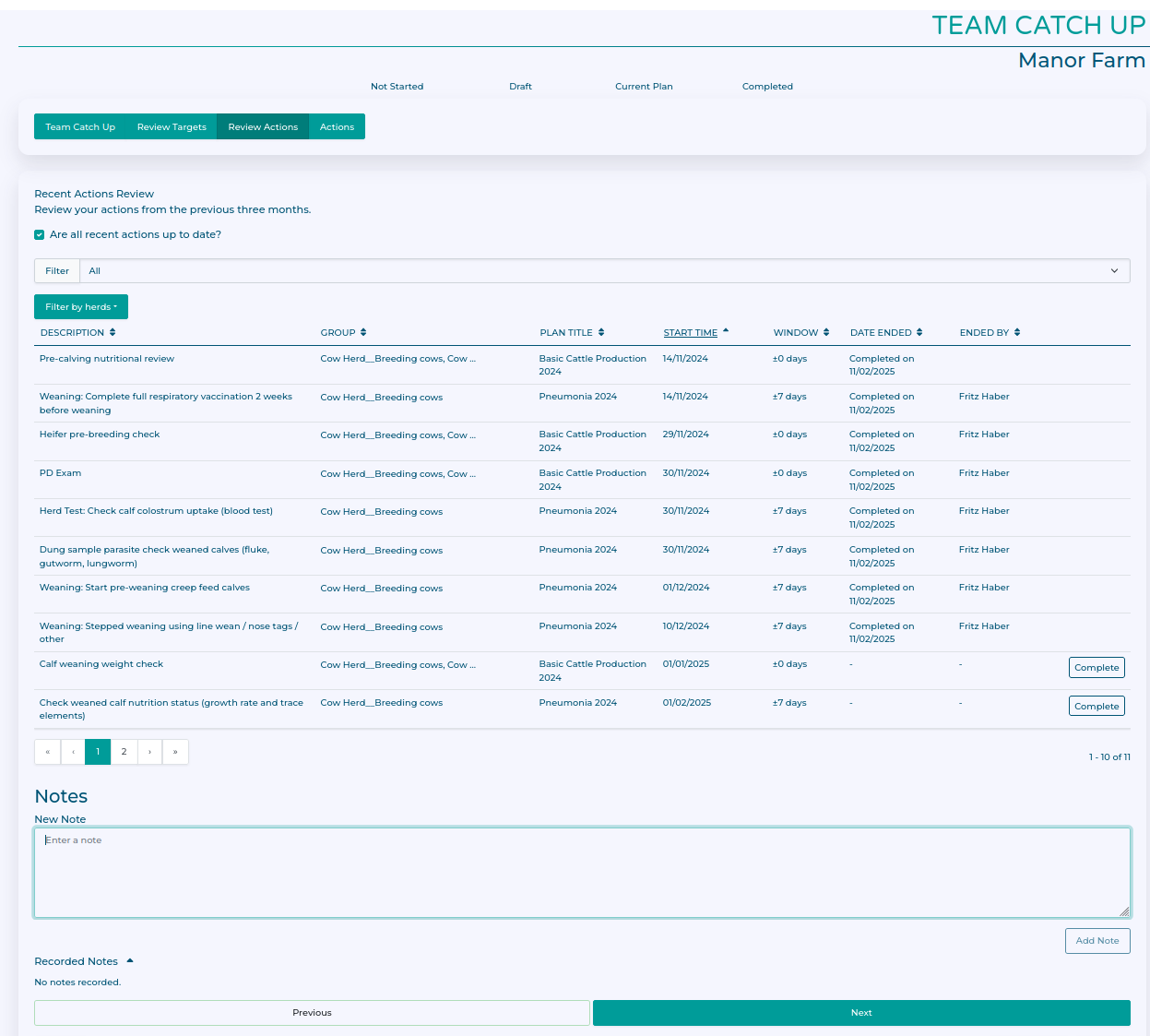
Reviewing Actions
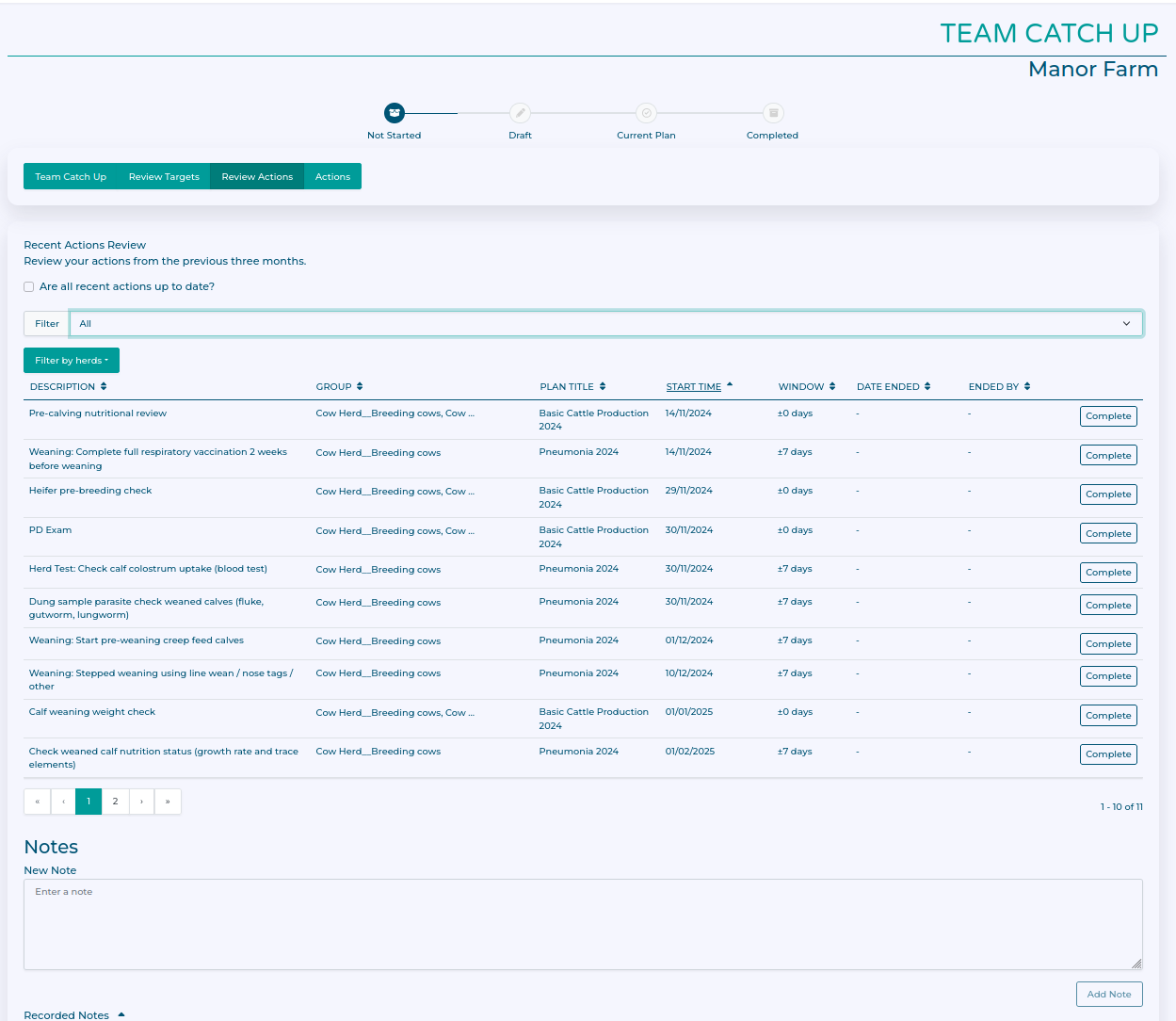
The Review Actions tab works in the same manner as the Review Targets tab.
And can be filtered by module or herd in the same manner.
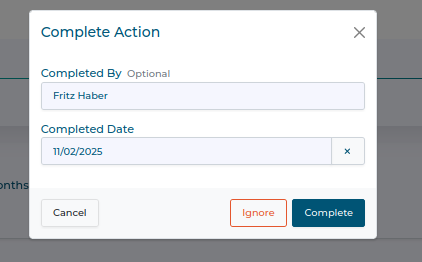
Complete an action by clicking the relevant Complete button. You can then make a note of who completed the action, and when.
Once relevant actions have been reviewed, check the Are all actions up to date? checkbox. You can add notes using the notes field at the bottom of the page. Type whatever information you want to record and then push Add Note to save it to the catch-up.
Recording New Actions
The last tab is the Actions tab, where you can record any actions that arise during review and discussion. Click Add Action to bring up the new action form.
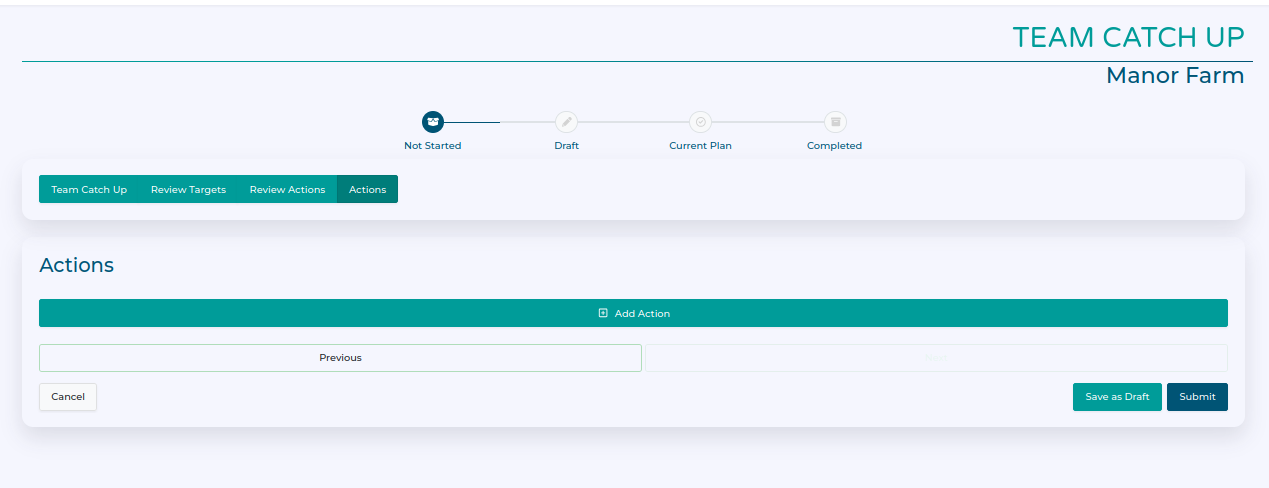
As part of setting an action within a catch-up you can choose whether to record it against the catch-up (if it is a general activity) or whether to add it to other existing health plan modules (for example, if it related to a specific infectious disease that was covered by a plan).
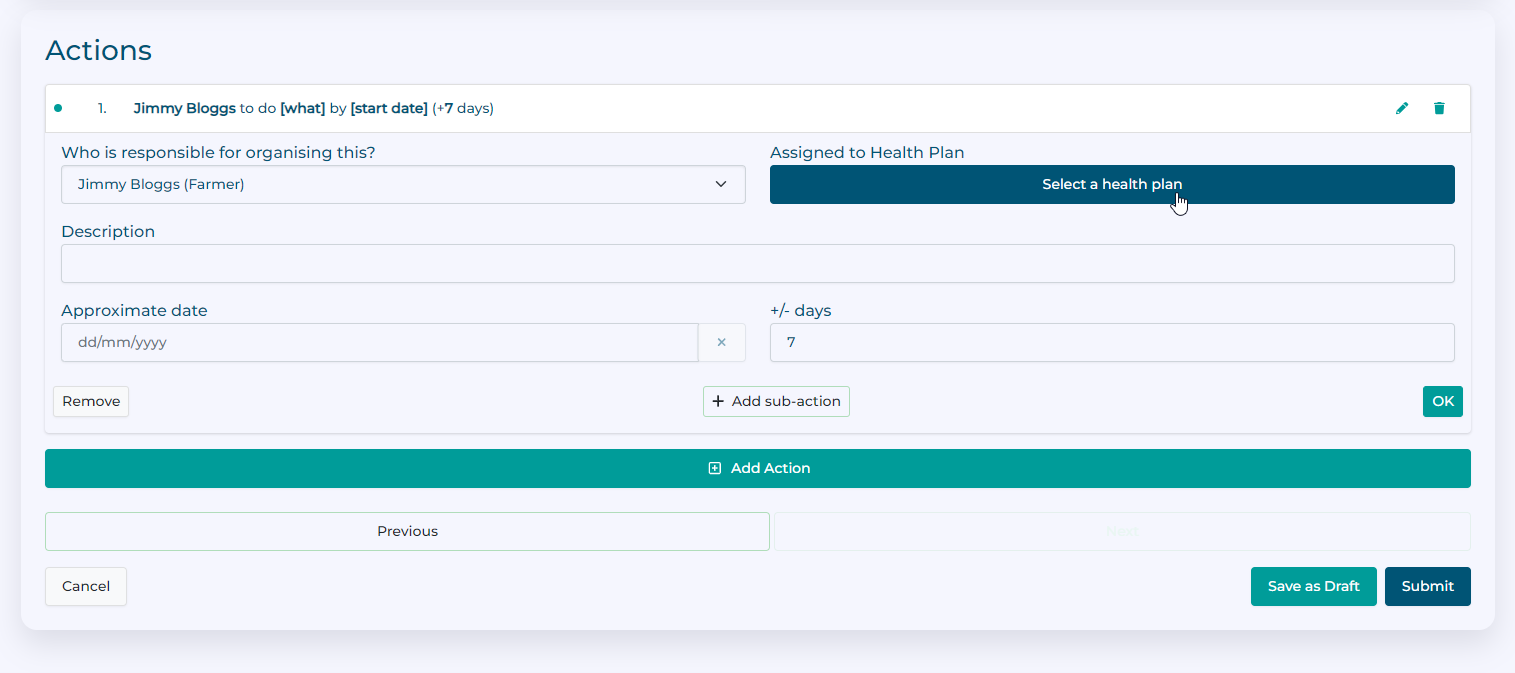
After clicking on 'Select a Health Plan', a window will appear with a list of current health plans to choose from. Choose either This Team Catch Up or select one of the existing health plans, then click the Select button to accept the choice.
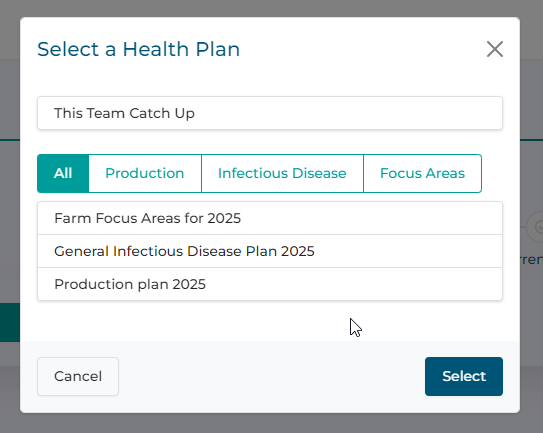
Complete the action's details (i.e. the what, who, and when of the action), and then press OK once you are finished. If you have chosen an existing health plan to assign the action to, it will be possible to use any tags from the animal group(s) linked with that plan.
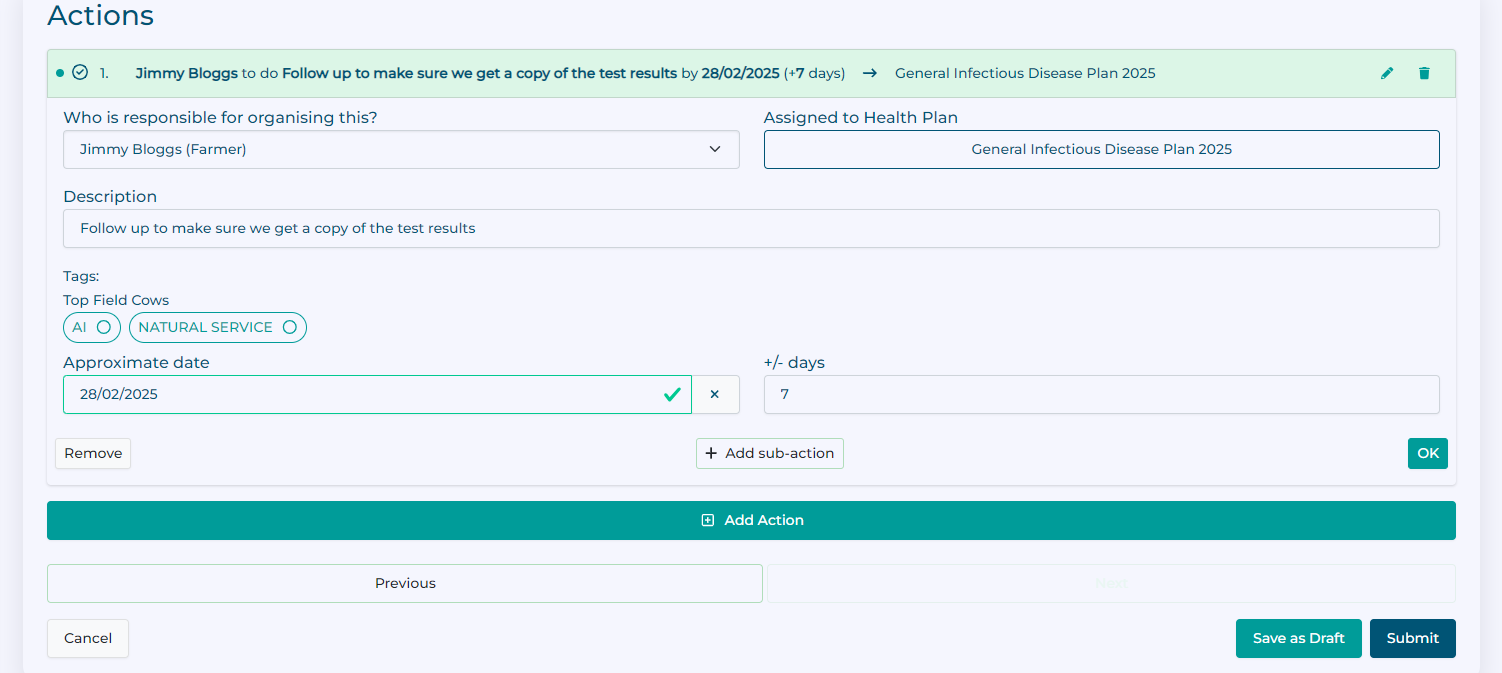
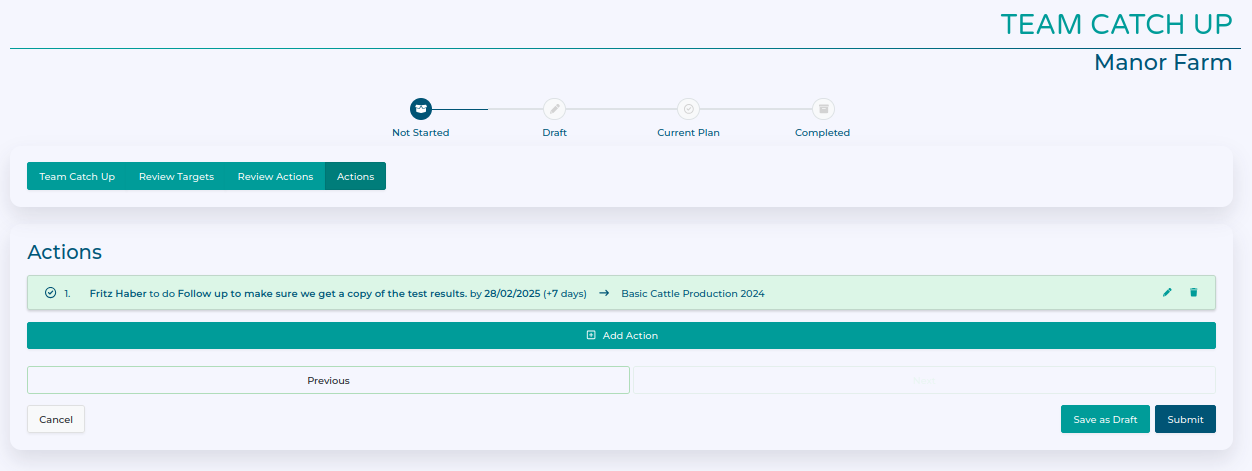
The action has now been added to the list. You can edit it further with the pencil button, or remove it with the bin button.
Submitting the Catch-up
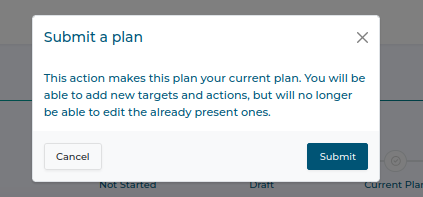
At this point, all recent targets and actions have been reviewed; and any new actions or notes have been recorded. Use the Submit button to save the Catch-up.
Accessing past Catch-up records
You can see all historical catch-up minutes using the Show past catch-ups toggle.
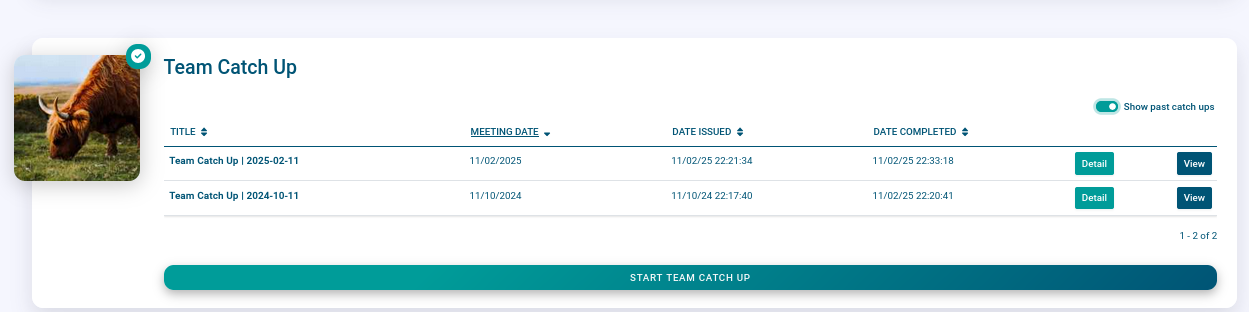
Clicking the view button on a catch-up presents a read-only version of the form for review.