Production Plan
The Production Plan module lets you set Targets and Actions for animal survival, growth rate targets for growing stock and fertility targets for breeding animals.
Process Overview
Workflow
Starting a new plan
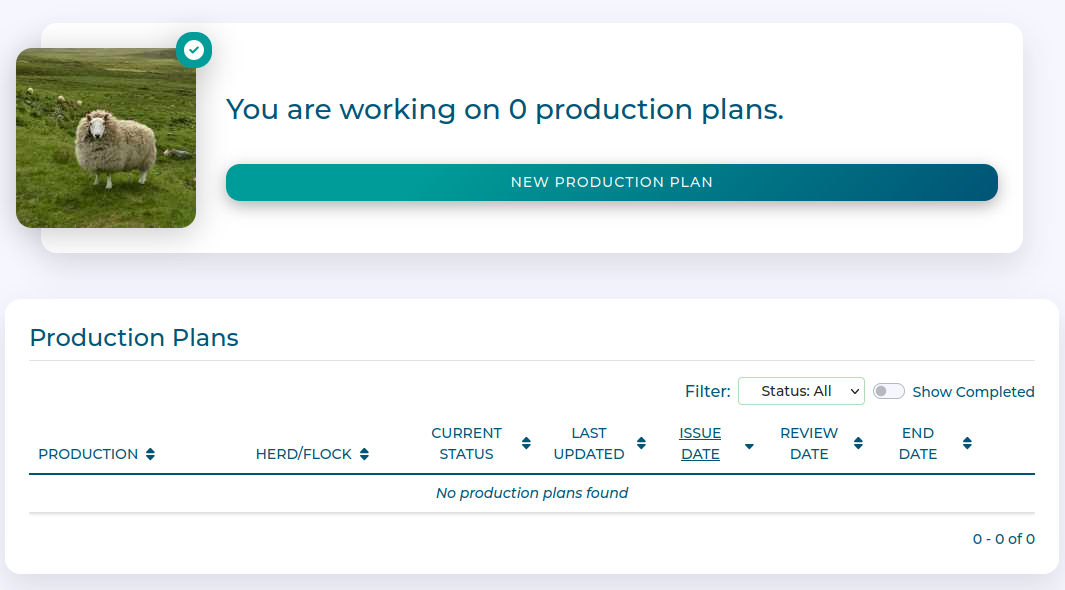
Click on New Production Plan
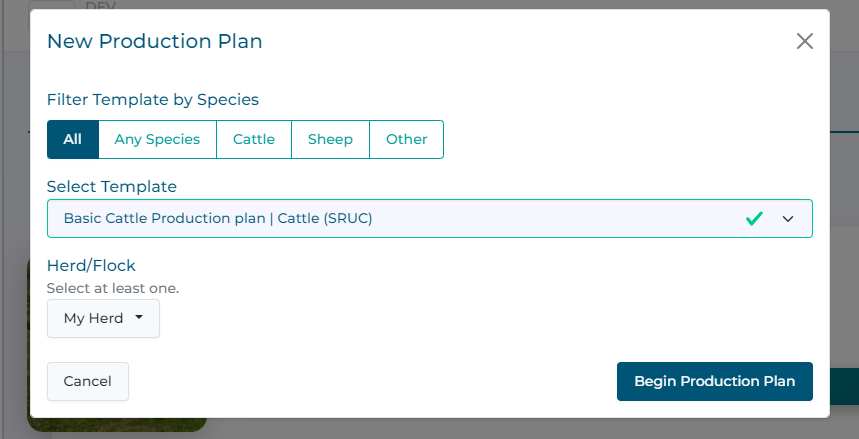
Select the Herds/Flocks you want to plan for, and pick the relevant template. Use the filters to quickly narrow down the template options by species.
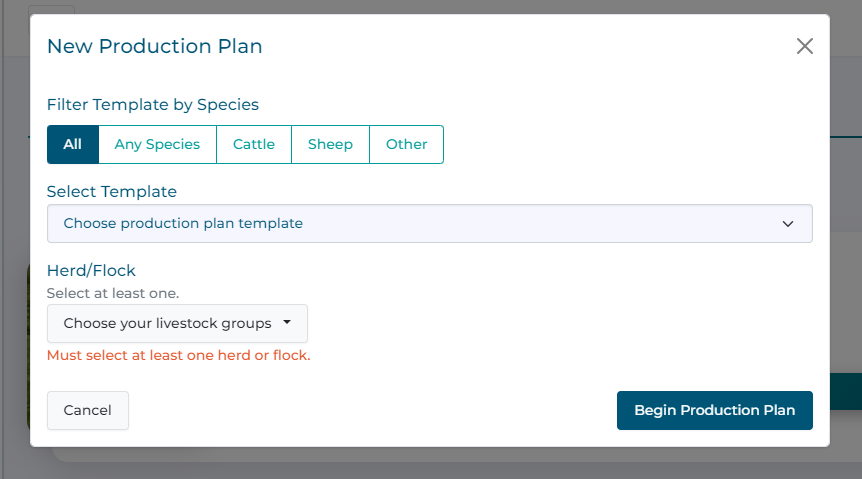
Click Begin Production Plan
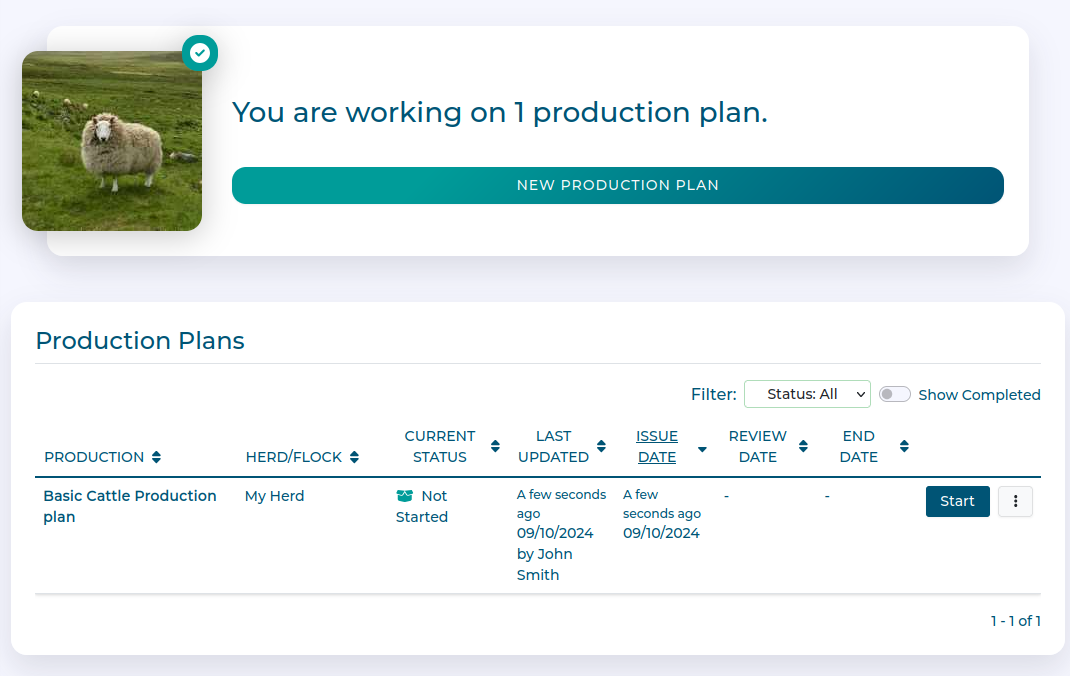
You now have a new Production Plan to work with. Click Start when you are ready to begin.
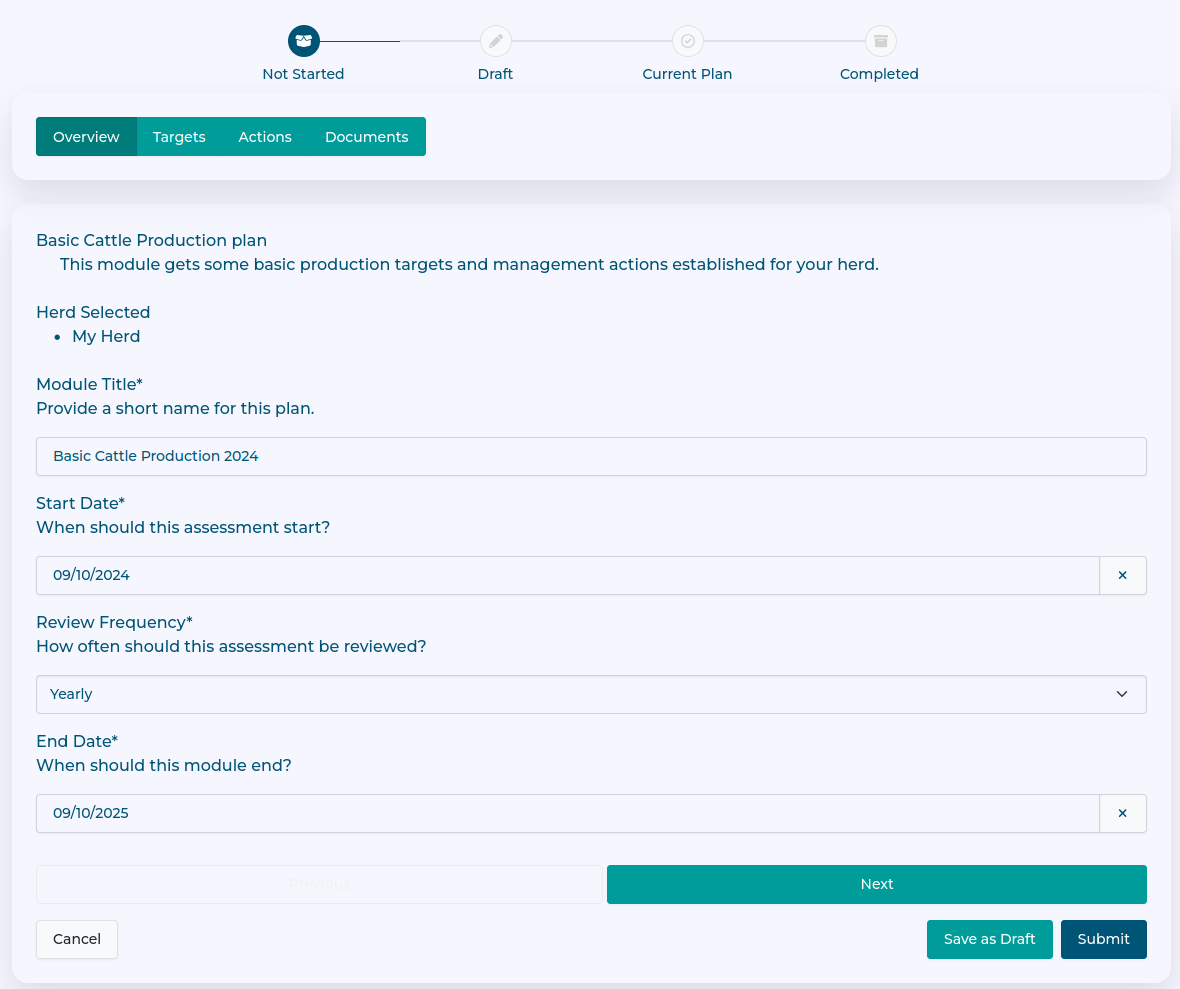
On the Overview, you can set the Name, Start and End Date, and review frequency for the plan.
Setting targets
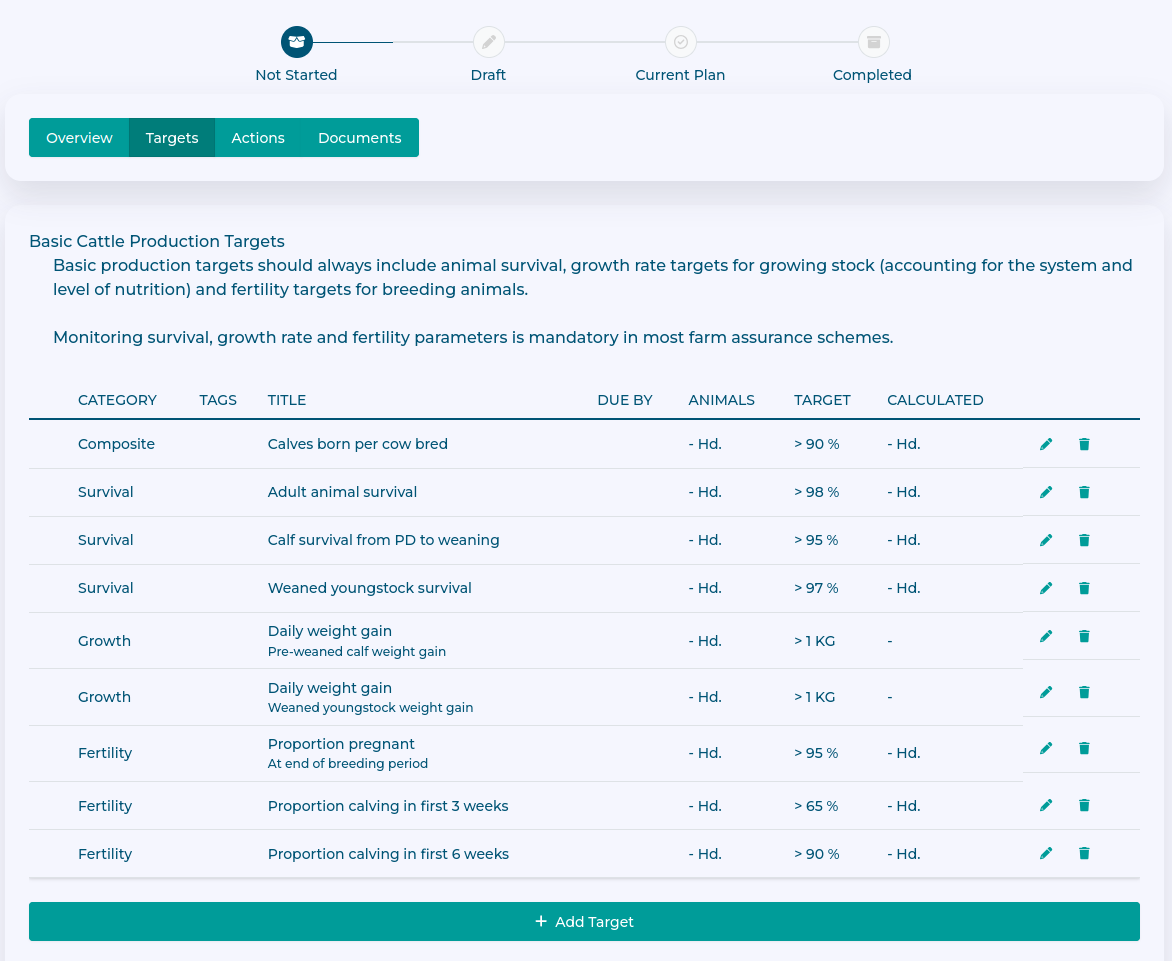
On the targets tab of the module you will see the suggested targets based on the template you chose earlier.
You can remove targets you don't want by using the Bin icon to delete them or add more using the Add Target button.
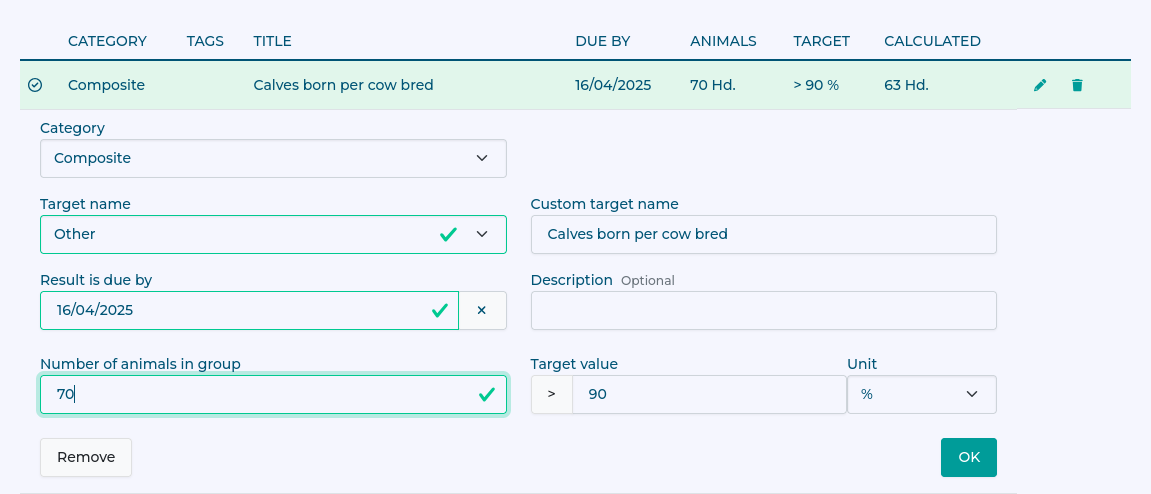
Whether you add targets yourself, or use the suggested targets they need to have some specific information to be valid.
A name and category
A target value (if your value is a percentage you will also need to provide a denominator value of a headcount of animals the target applies to.)
A date due date
You can use the pencil icon to edit targets to supply the information.

Once complete, hit OK to finish editing the target.
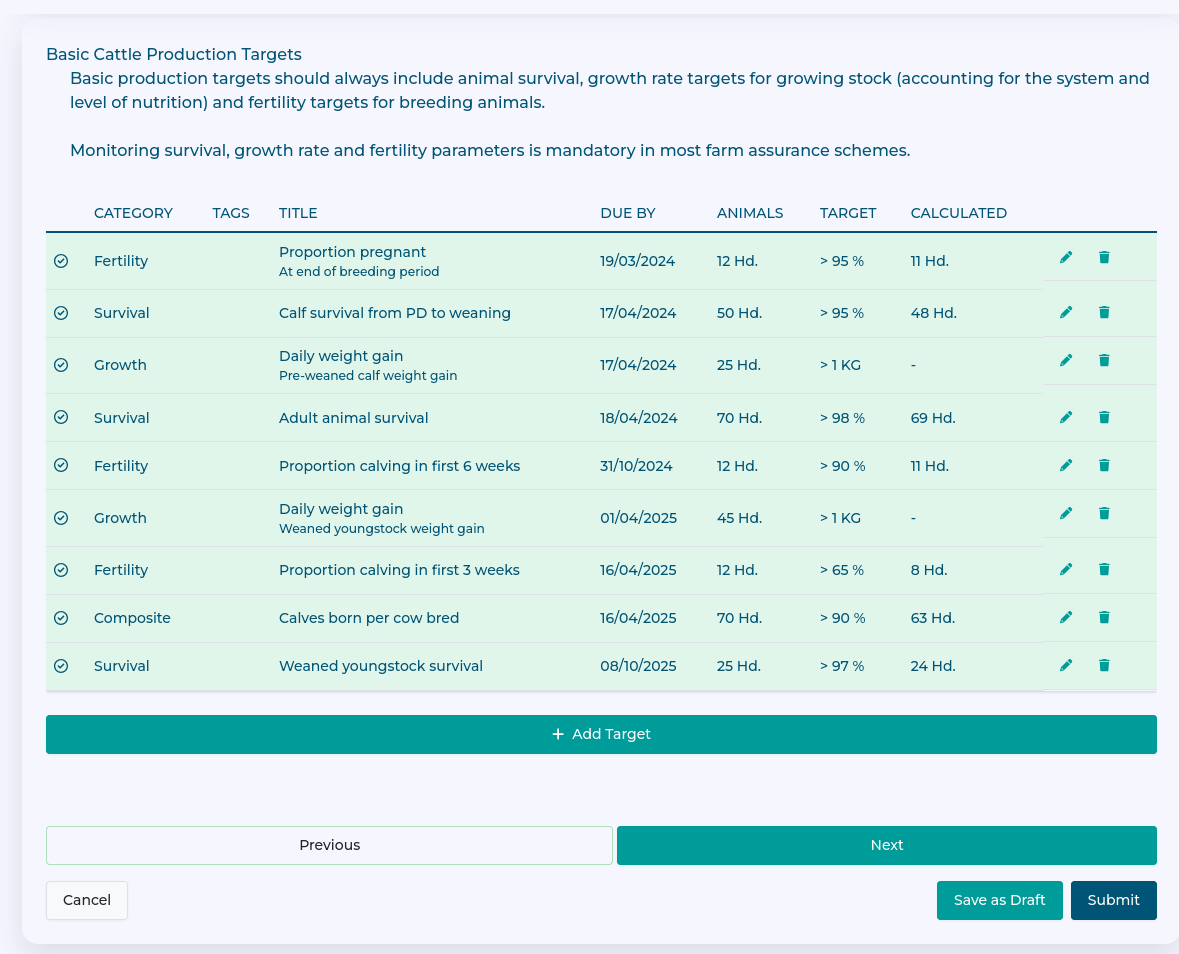
Once all your targets are complete you can hit Next to set actions, or Save as Draft to save progress on the form.
Setting actions
On the actions tab of the module you will see the suggested actions based on the template you chose earlier.
You can remove actions you don't want by using the Bin icon to delete them or add more using the Add Action button.
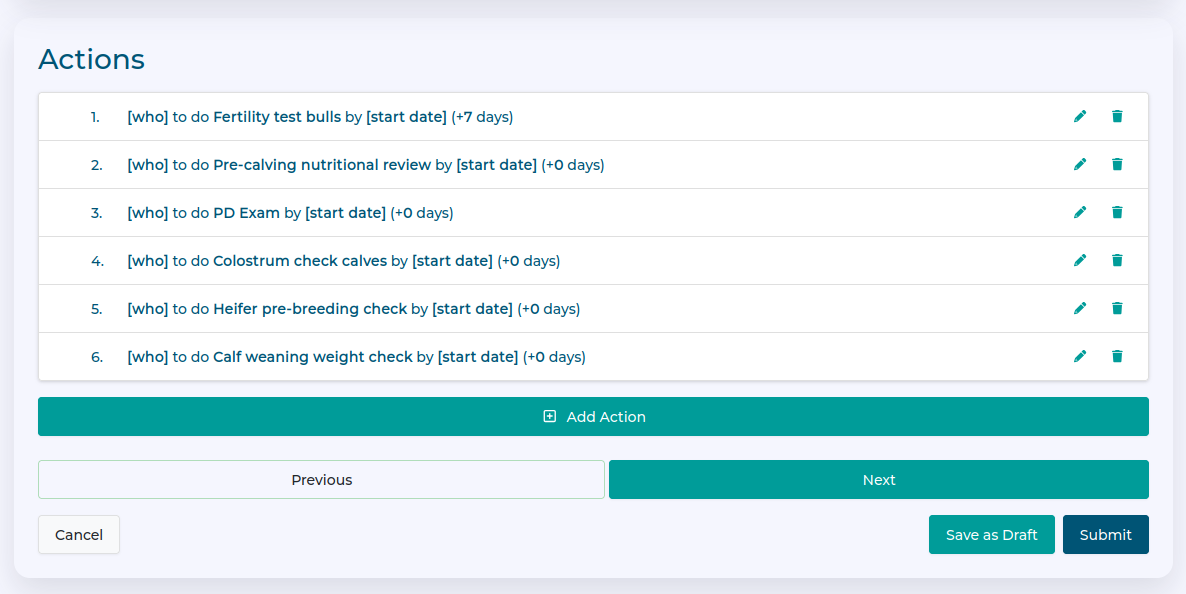
Like targets, actions are only valid if certain details are added:
What is the name of the action
Who is responsible for the action
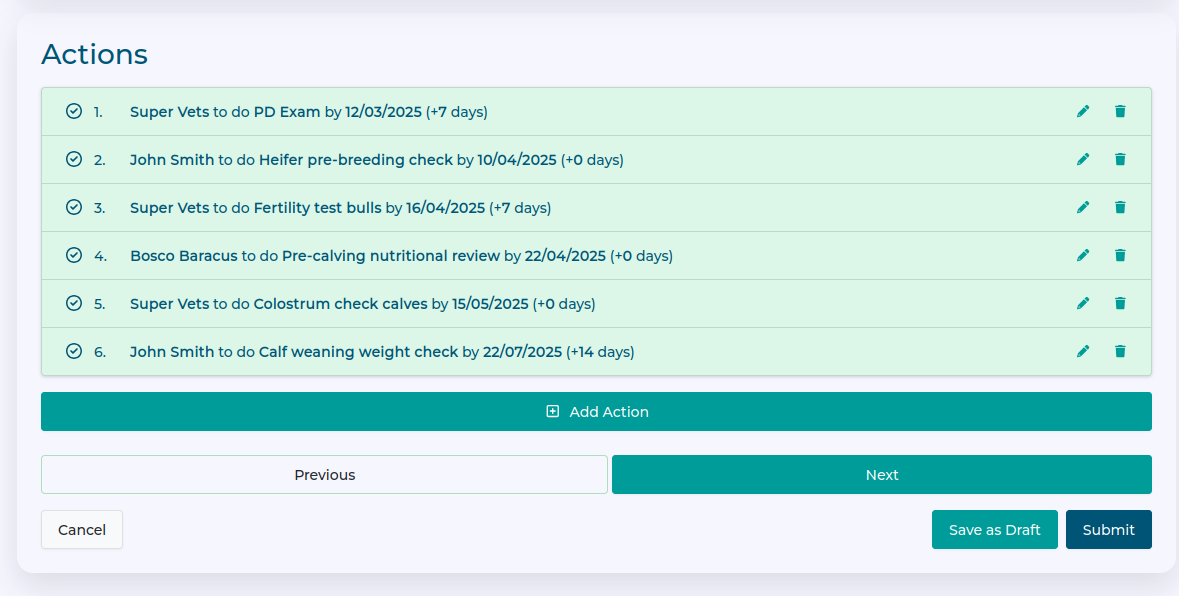
When is it planned for (you can define a date and expected days beyond that date for actions which might happen during a time period)
You can use the pencil icon to edit actions to supply the information.
Once all your actions are complete you can hit Next to set actions, or Save as Draft to save progress on the form.
You can also define 'sub-actions' using the Add sub-action button whilst editing an action.
This allows you to build 'chains' of linked actions, such giving a booster 21 days after an initial vaccination for example.

Defining documents
Some actions or targets might generate documentation that you specifically want to tie to this production plan.
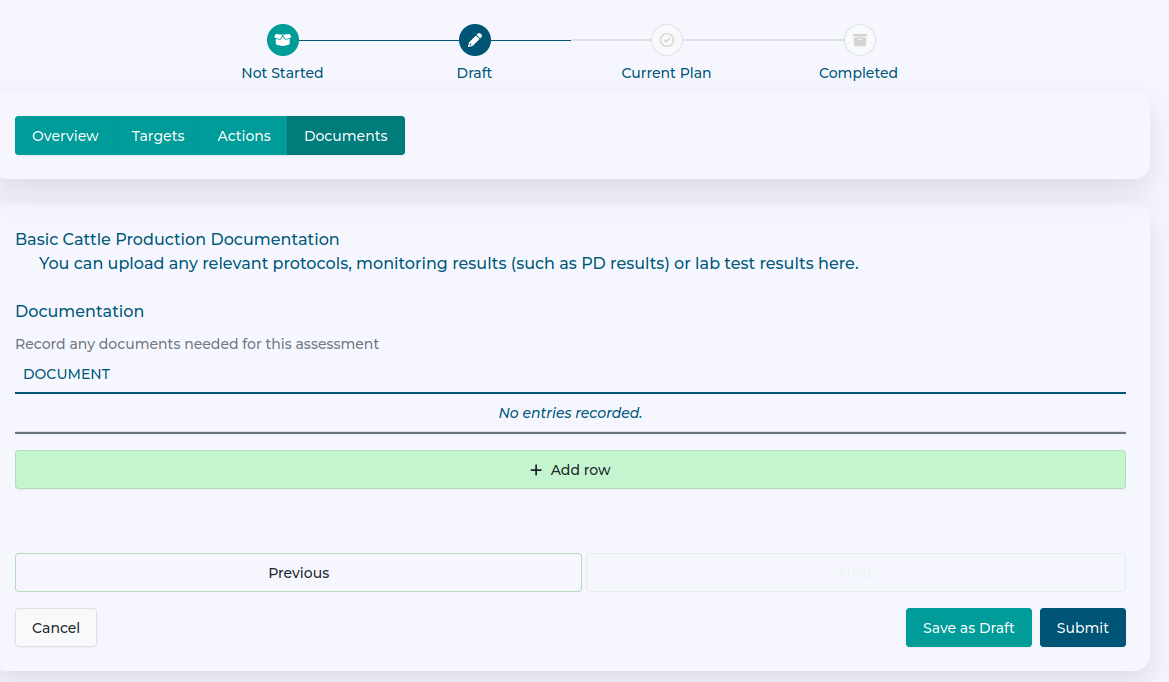
You can use the Add row button to name expected documents here. They will be uploaded at a later date once the activity that generates them has occurred.
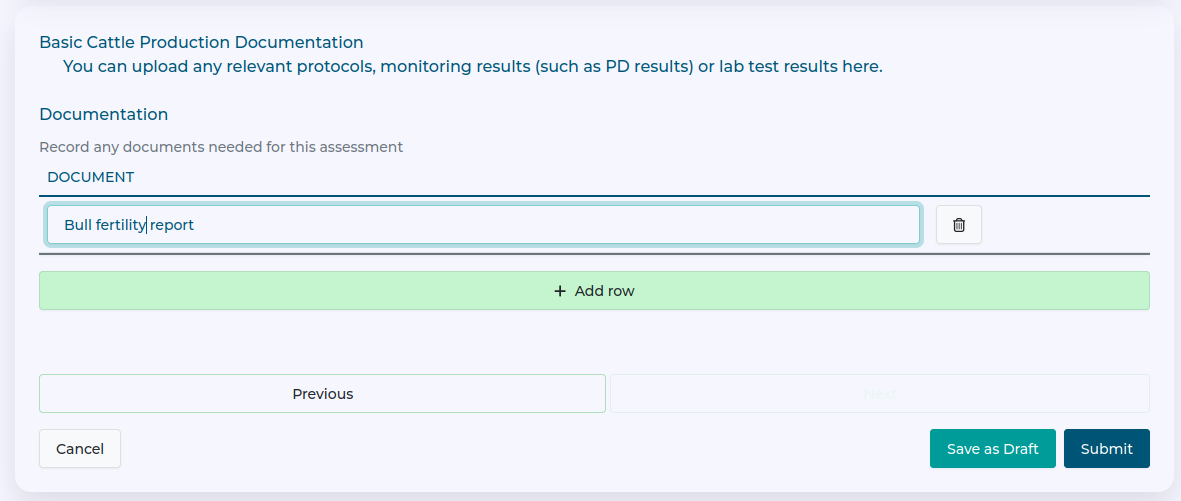
Once all your documents are defined you can hit Save as Draft to save progress on the form, or Submit to make the plan active.
Activating Plans
Once the plan is complete, you need to submit it to make it active. Make sure you have reviewed the draft plan and are happy with it before proceeding.
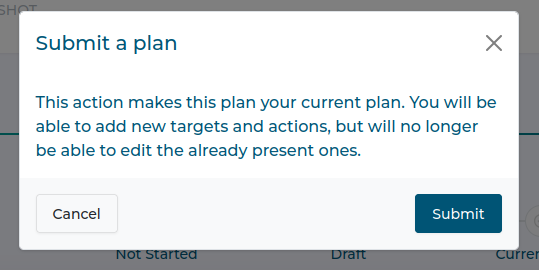
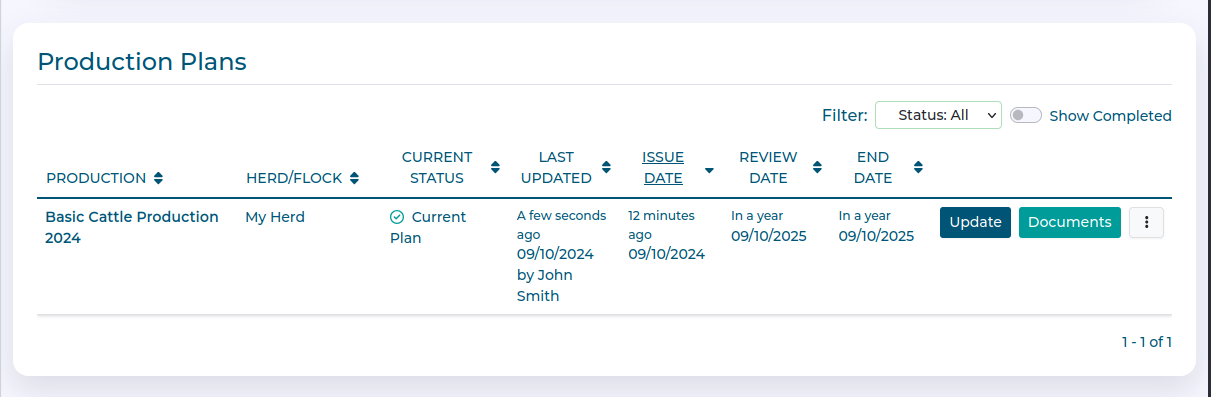
Once your plan is active, you can complete actions, report results of targets, and upload documents to it.
Recording Progress
Whilst actions and targets are usually updated through Team Catch up you can also change them from the plan itself. Use the update button to access the plan.
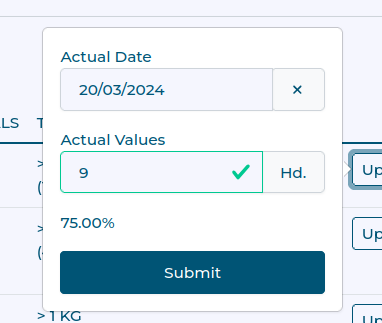
On the Targets tab you can now record any results in the planned targets by clicking the Update button next to the relevant target.
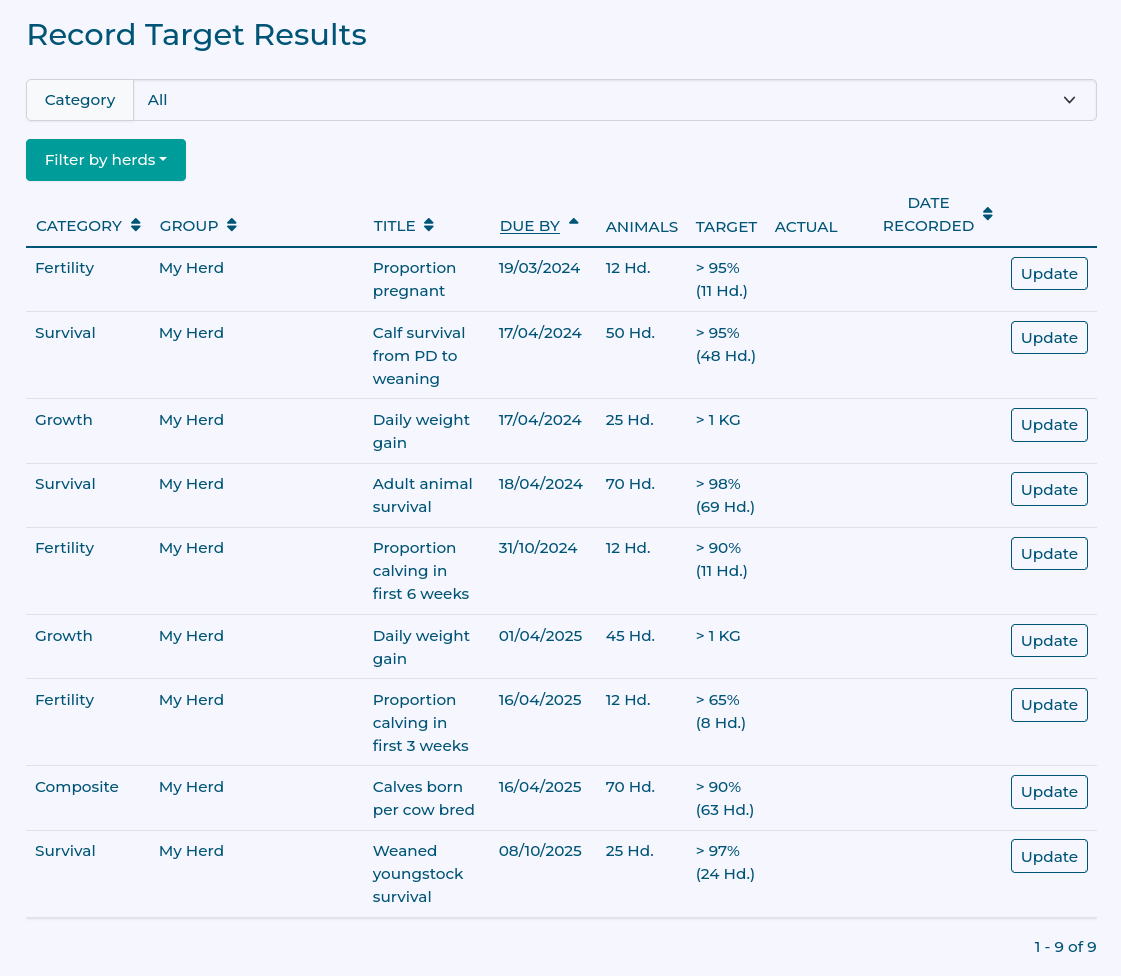
You can set the date and the achieved result.
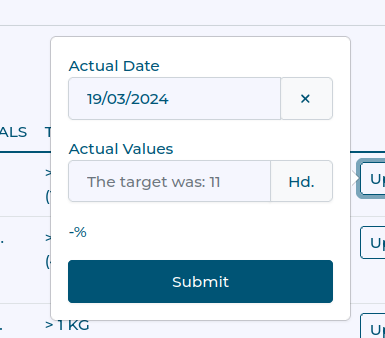
Click submit to record the changes.
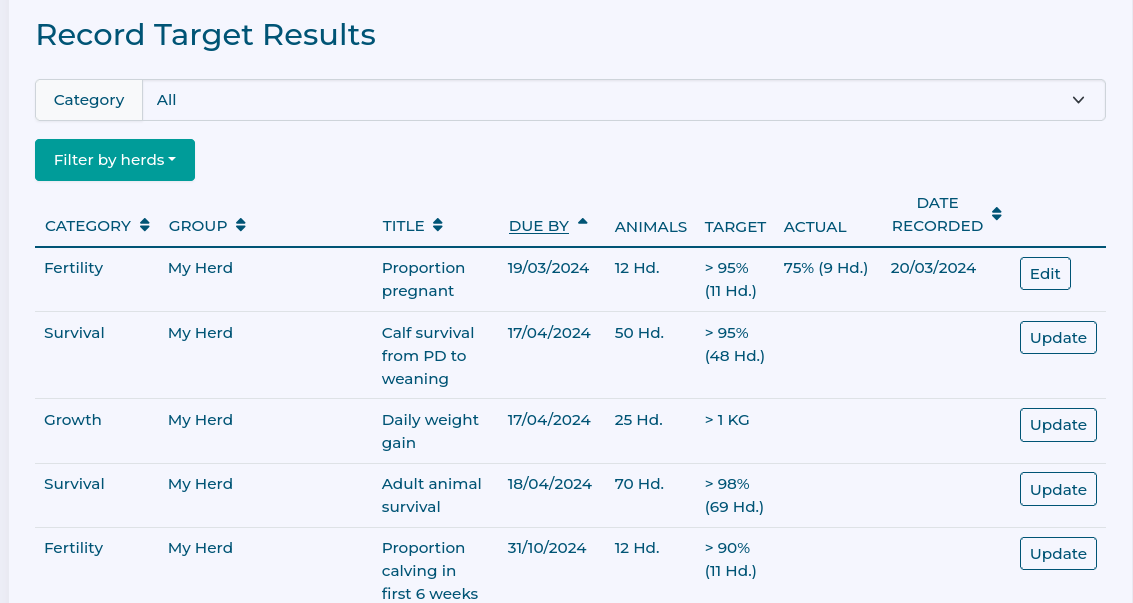
You can see the recorded result in the table. Don't worry, you can edit reported results as long as the plan is still active.
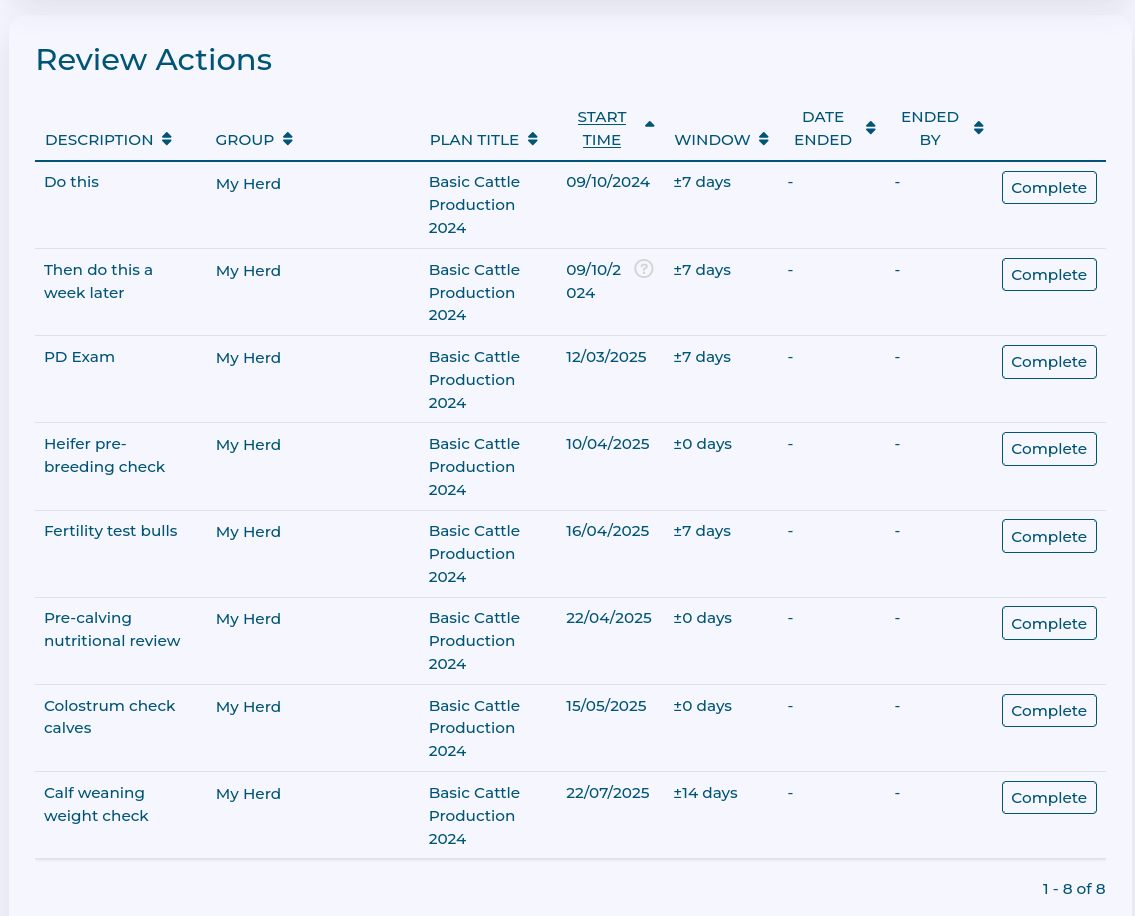
Similarly on the Actions tab, you can see all actions in this plan and report whether they are completed or not by clicking the Complete button for the relevant action.
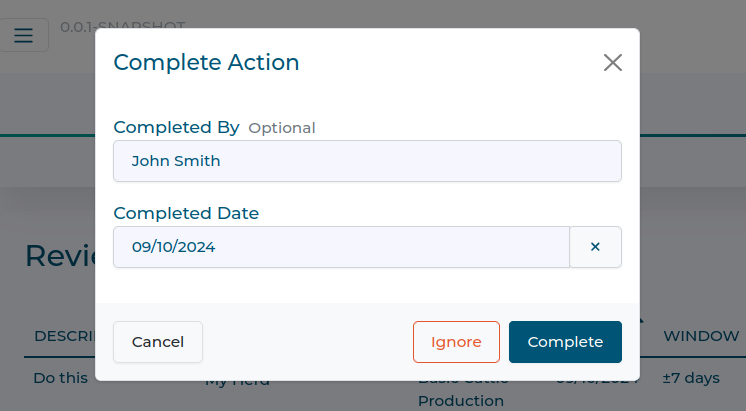
You can report who completed the action and when and save this by clicking Complete. You can also choose to Ignore an action if it is no longer required.
Uploading Documents
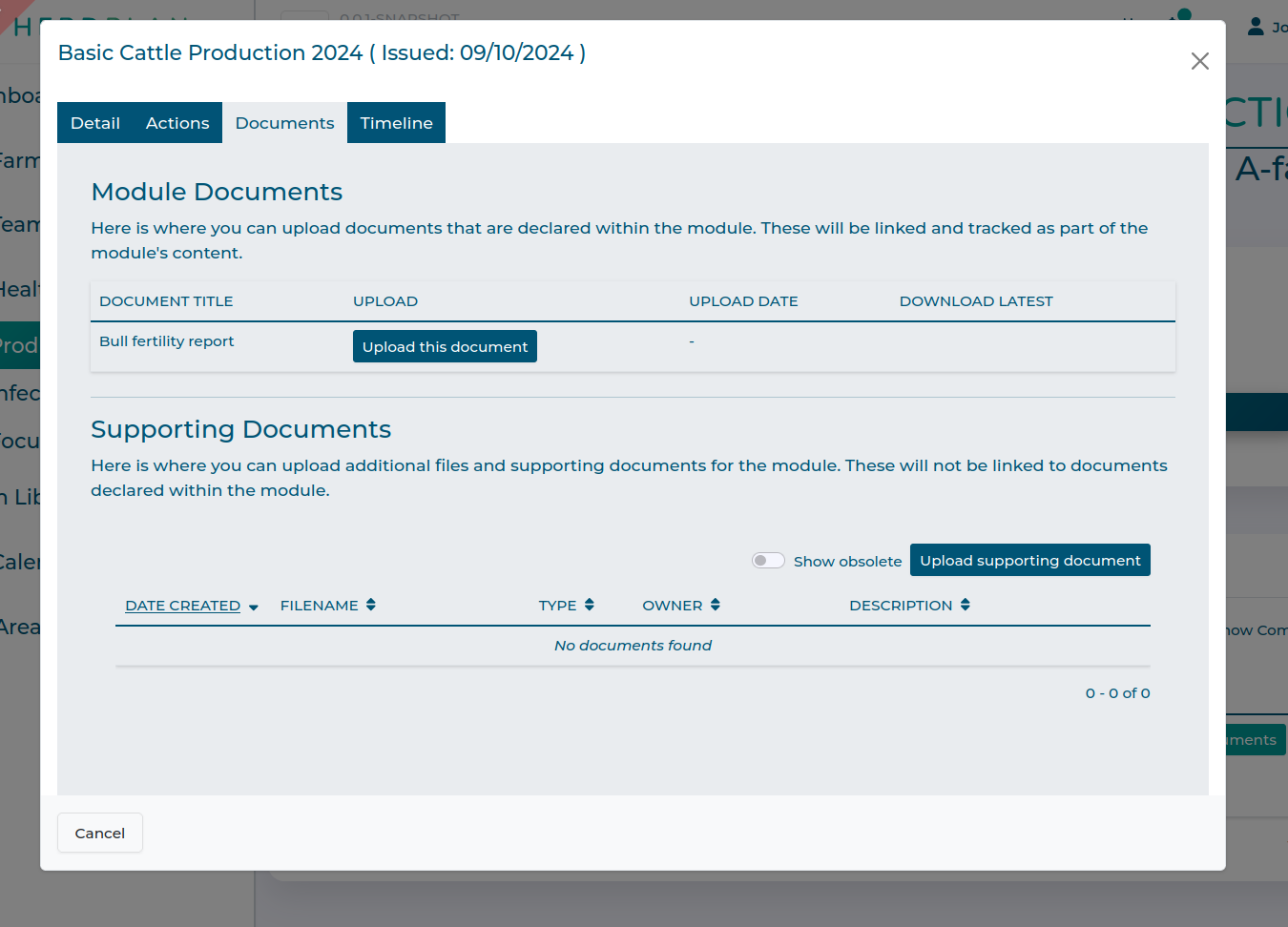
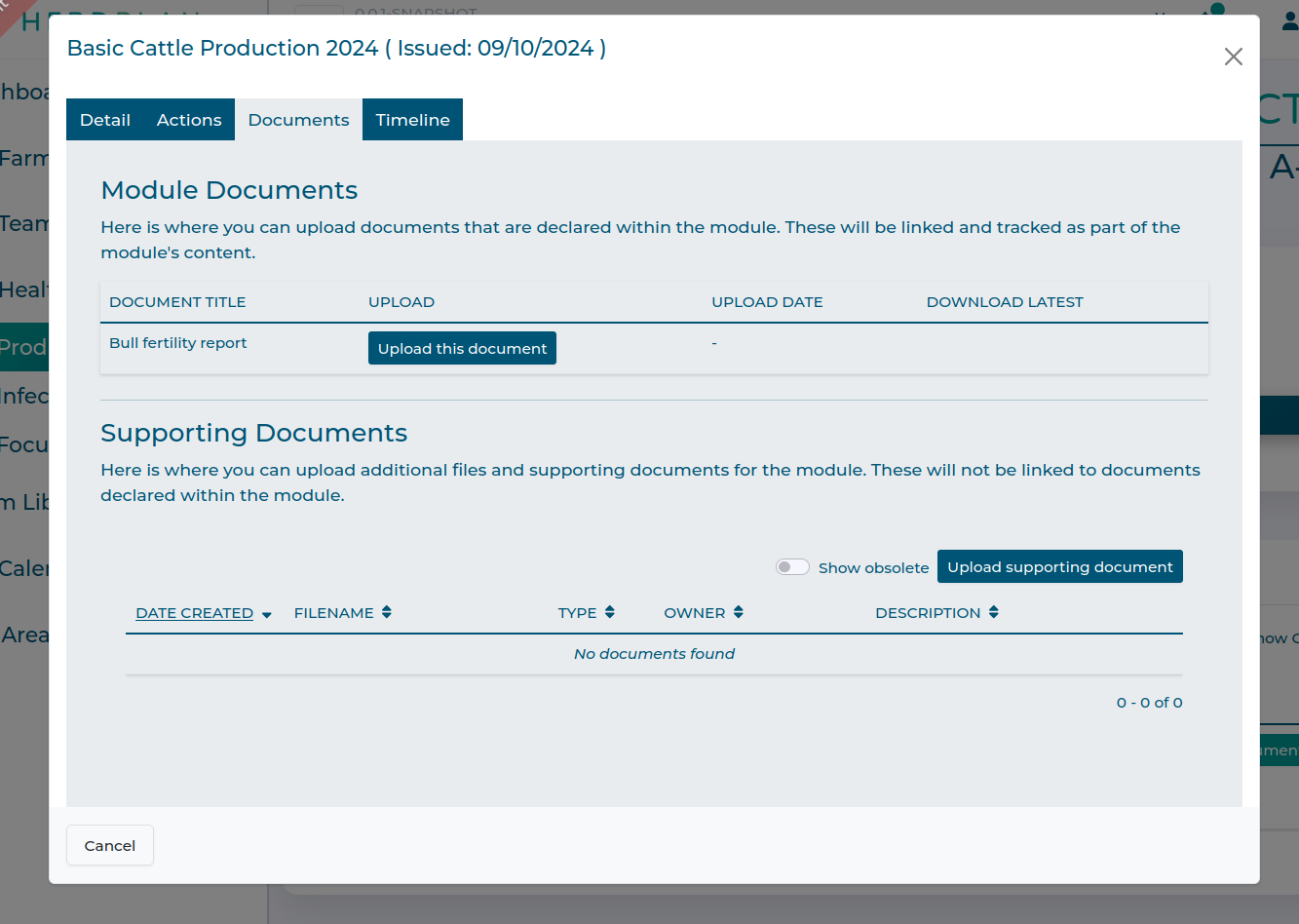
You can manage documents associated with a plan using the Documents button.
From the documents dialog, you can upload Module Documents (i.e. documents which are expected and agreed as part of setting up the module) using the Upload this document button for the relevant document.
You can also upload Supporting Documents using the Upload Supporting Document button. These are additional optional documents that you wish to store as part of the plan as you see fit.
Context Menu
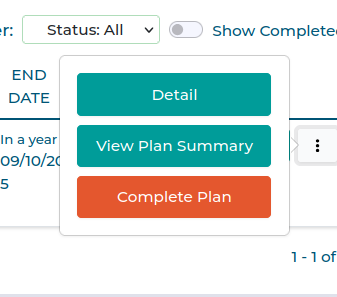
You can see more information and actions for a particular plan using the context menu (three vertical dots on the right.)
Detail
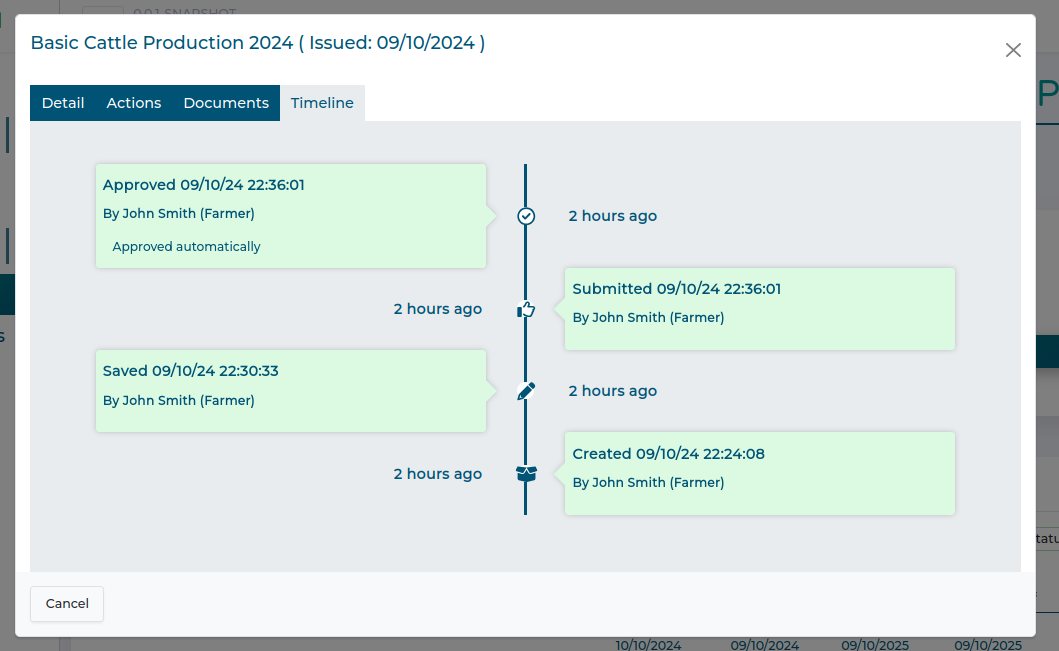
The Detail button launches the plan detail dialogue which gives you more information about the plan.
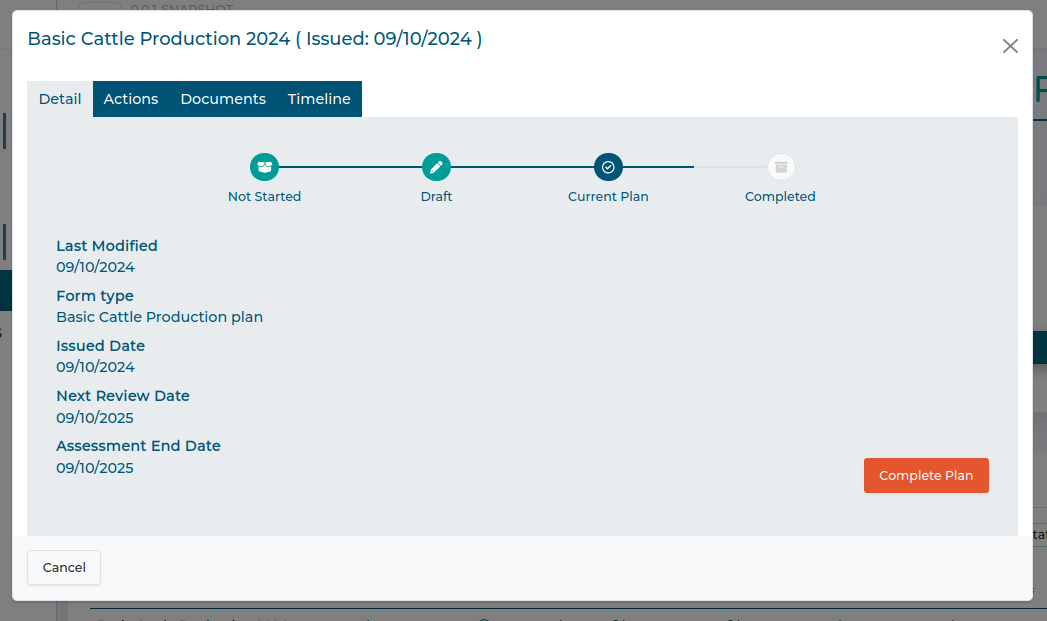
For example, you can see a timeline of the plan:
Summary
The Summary button launches the plan summary dialogue which
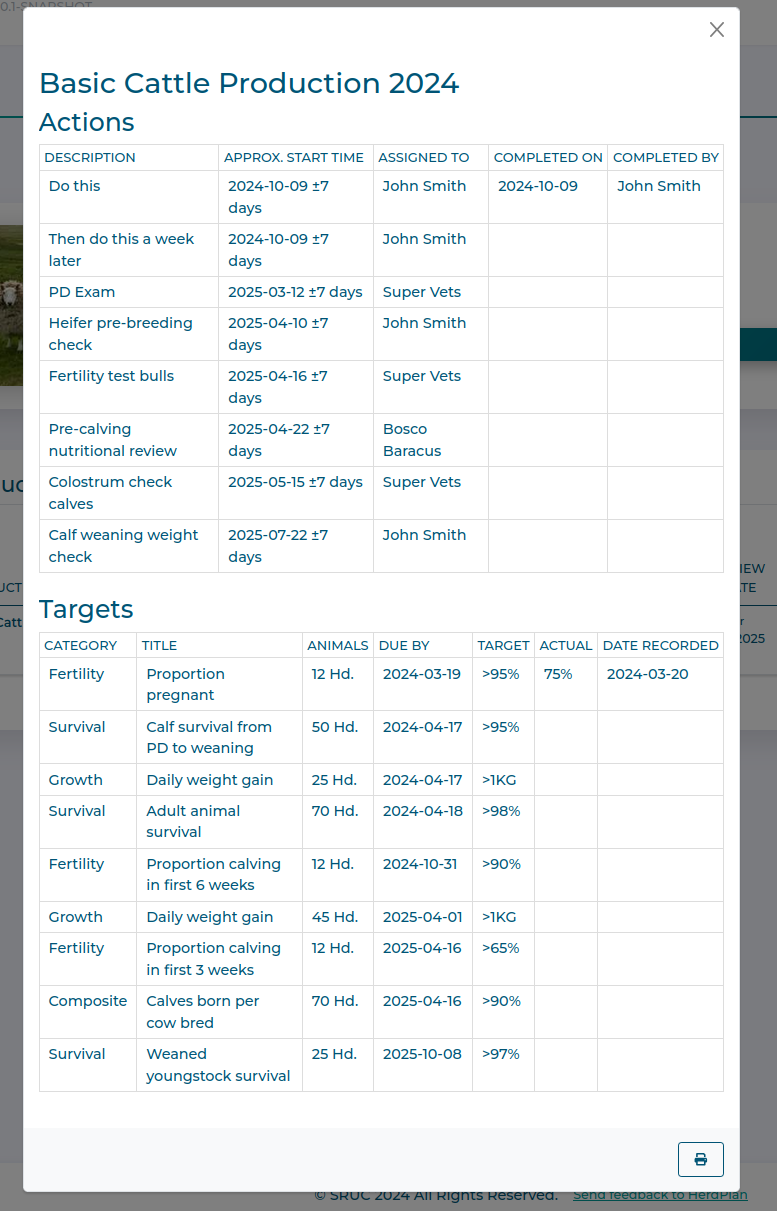
You can use the printer icon in the corner to generate a PDF copy which can be emailed or printed.
Complete
Once a plan is finished, you can mark it as completed with the Complete Plan button.
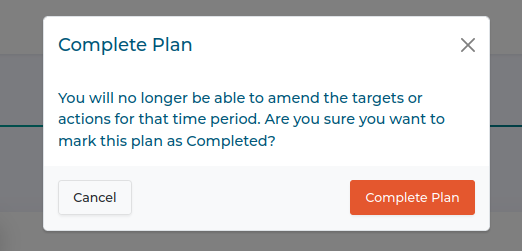
You can't edit a completed plan at all, so you will be asked to confirm this is what you want.