My Clients
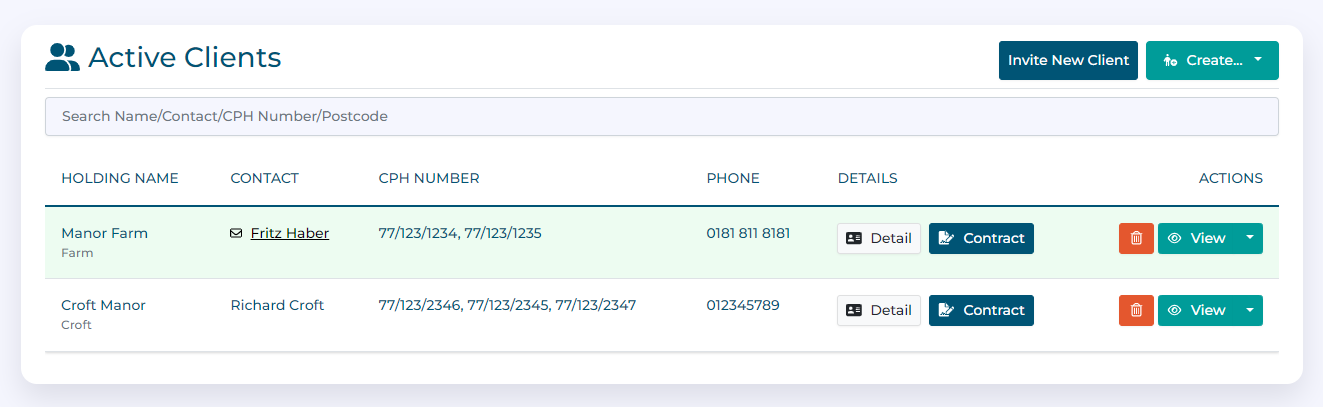
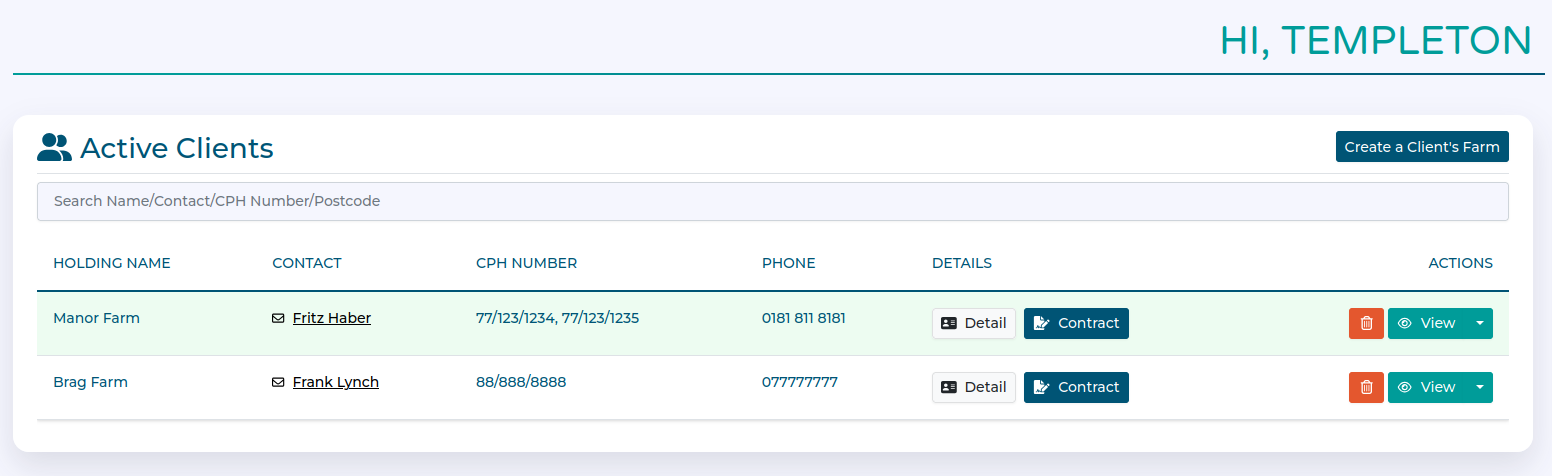
The 'Active clients' card provides quick access to client details, lets you invite clients or create client farms on their behalf.
Types of Client
As a vet, you can connect to clients in a farm or in a township. They operate in broadly similar ways, with a few key differences which are outlined here.
Viewing Clients
Clicking the view button for a client makes that client the selected client and navigates you to their Farm overview.
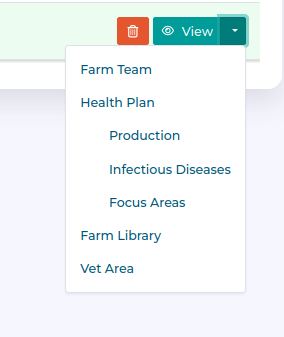
You can use the dropdown menu next to the view button to navigate to other areas in the Client farm also.
Adding and Creating Clients
Inviting a client farm
Click on the Invite New Client button.
Add the email address of the client you want to invite. You can also include an optional message if you wish.
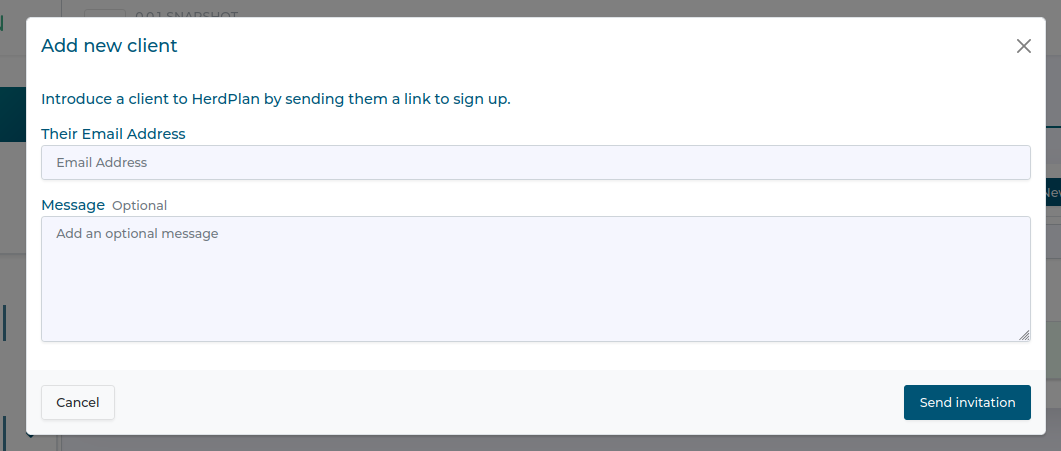
Click Send Invitation when complete.
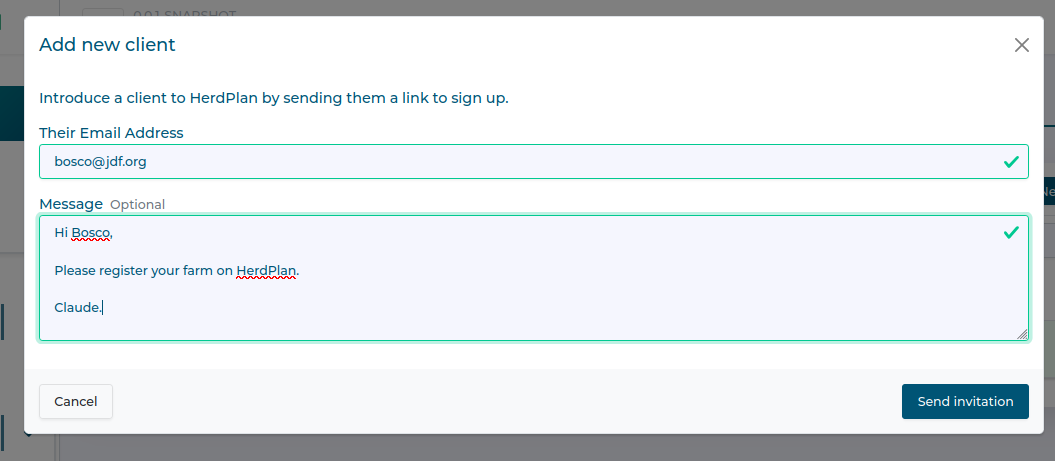
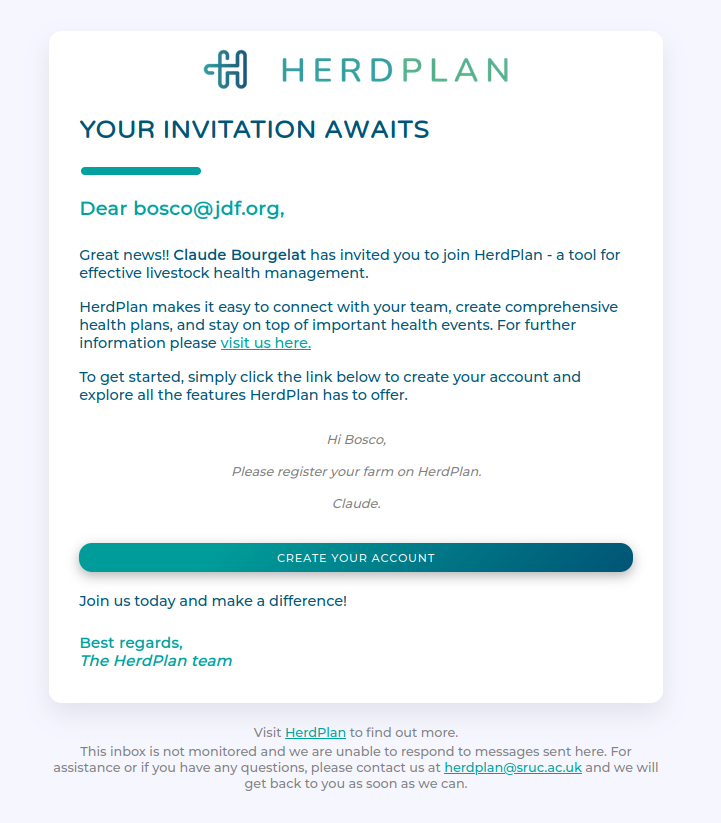
The client will receive an email instructing them to register with HerdPlan. Once they have completed the onboarding process, they will be able to accept your invitation and your practice will be linked to their Farm.
Creating a client farm
Begin by clicking Create... then the Create a Client Farm button.
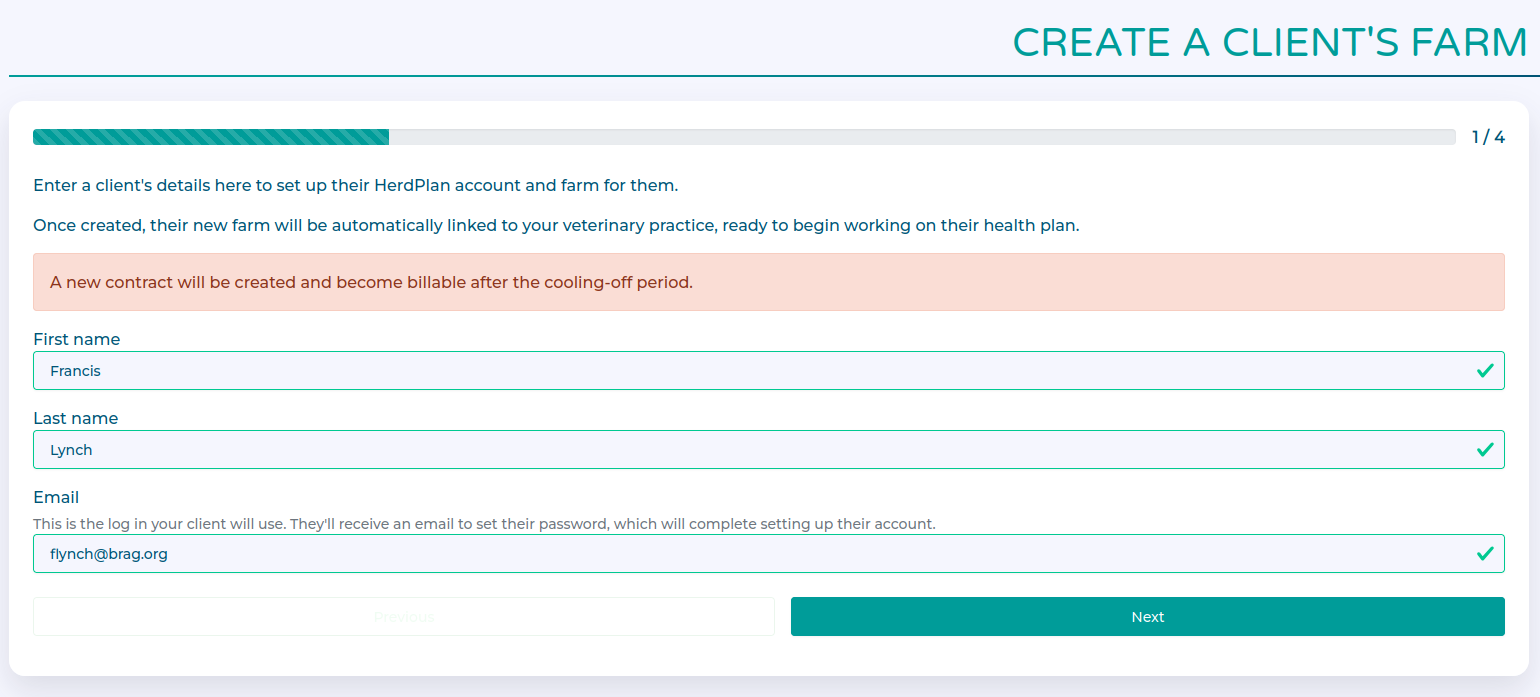
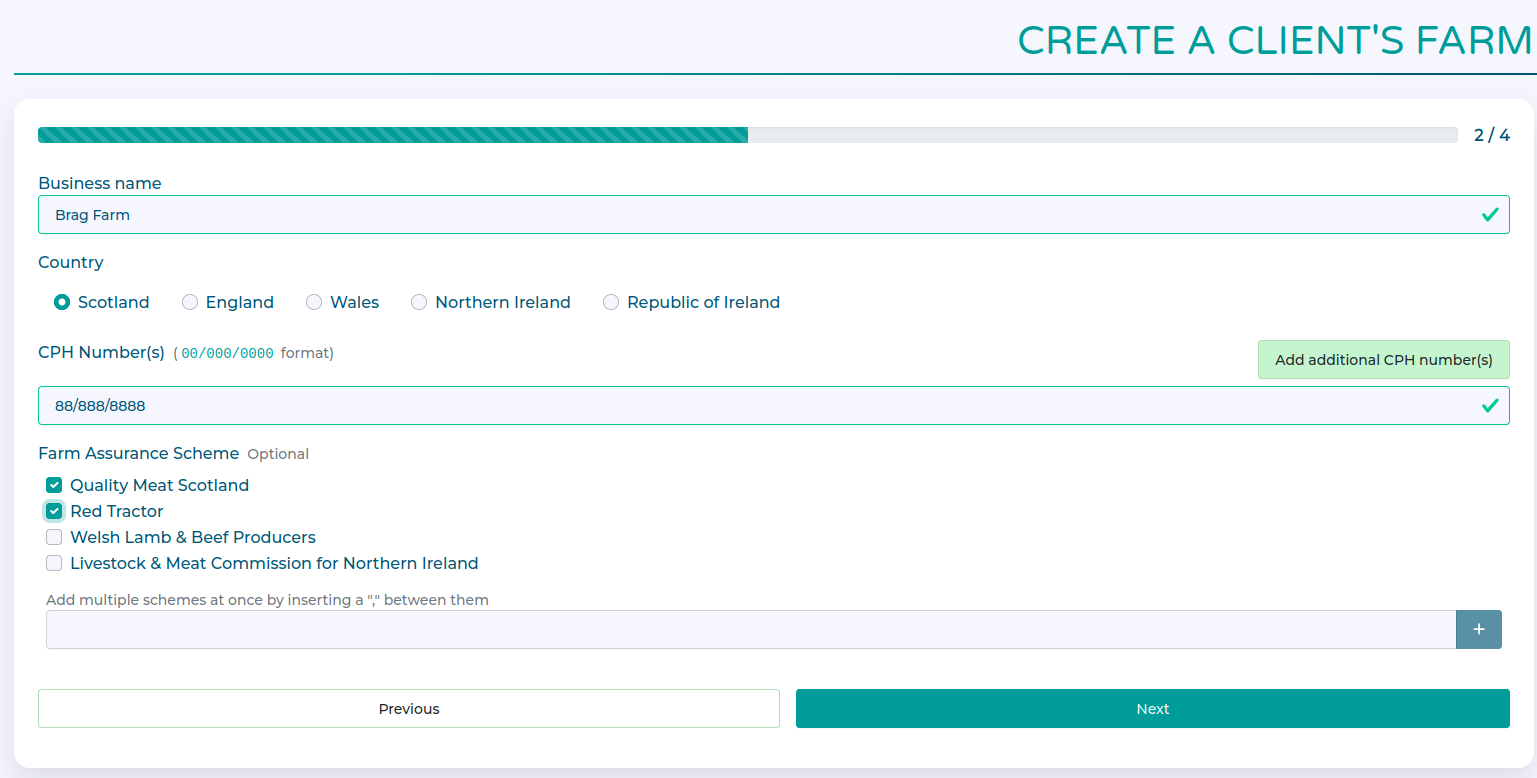
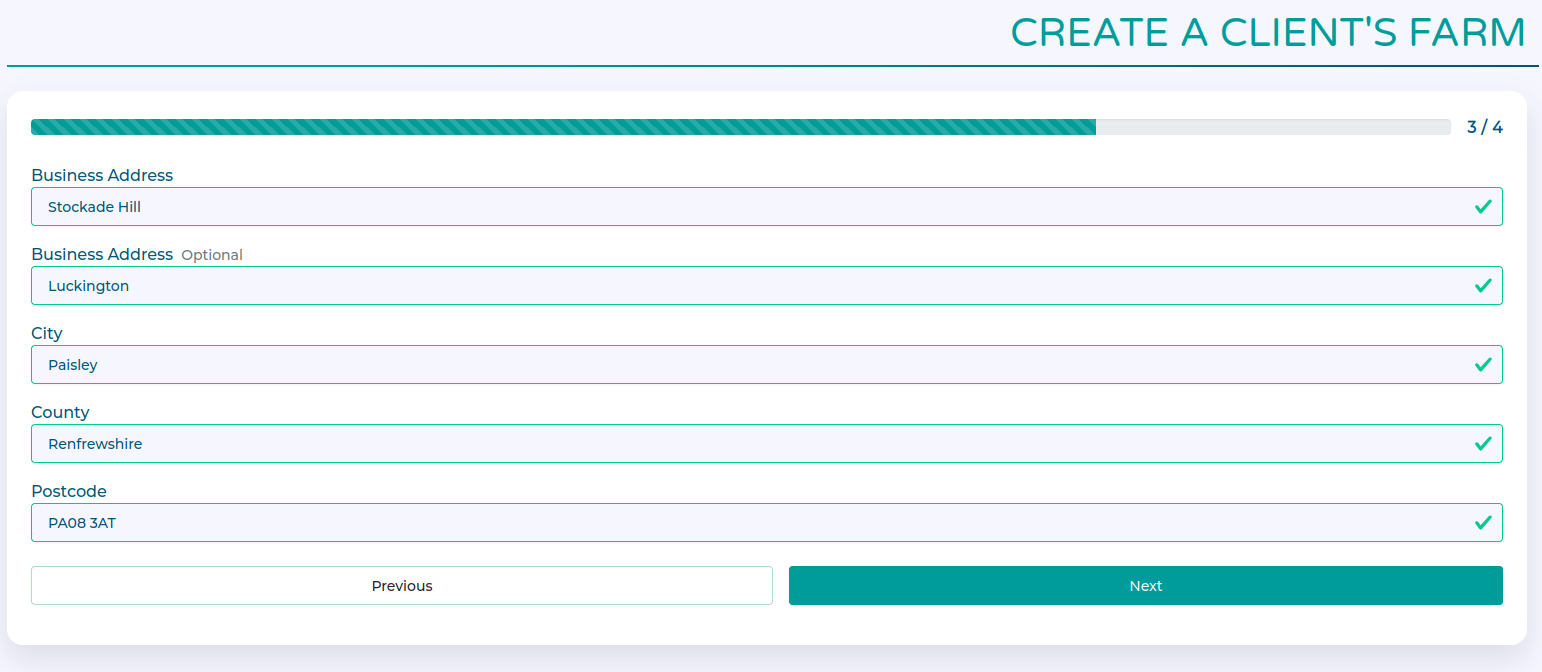
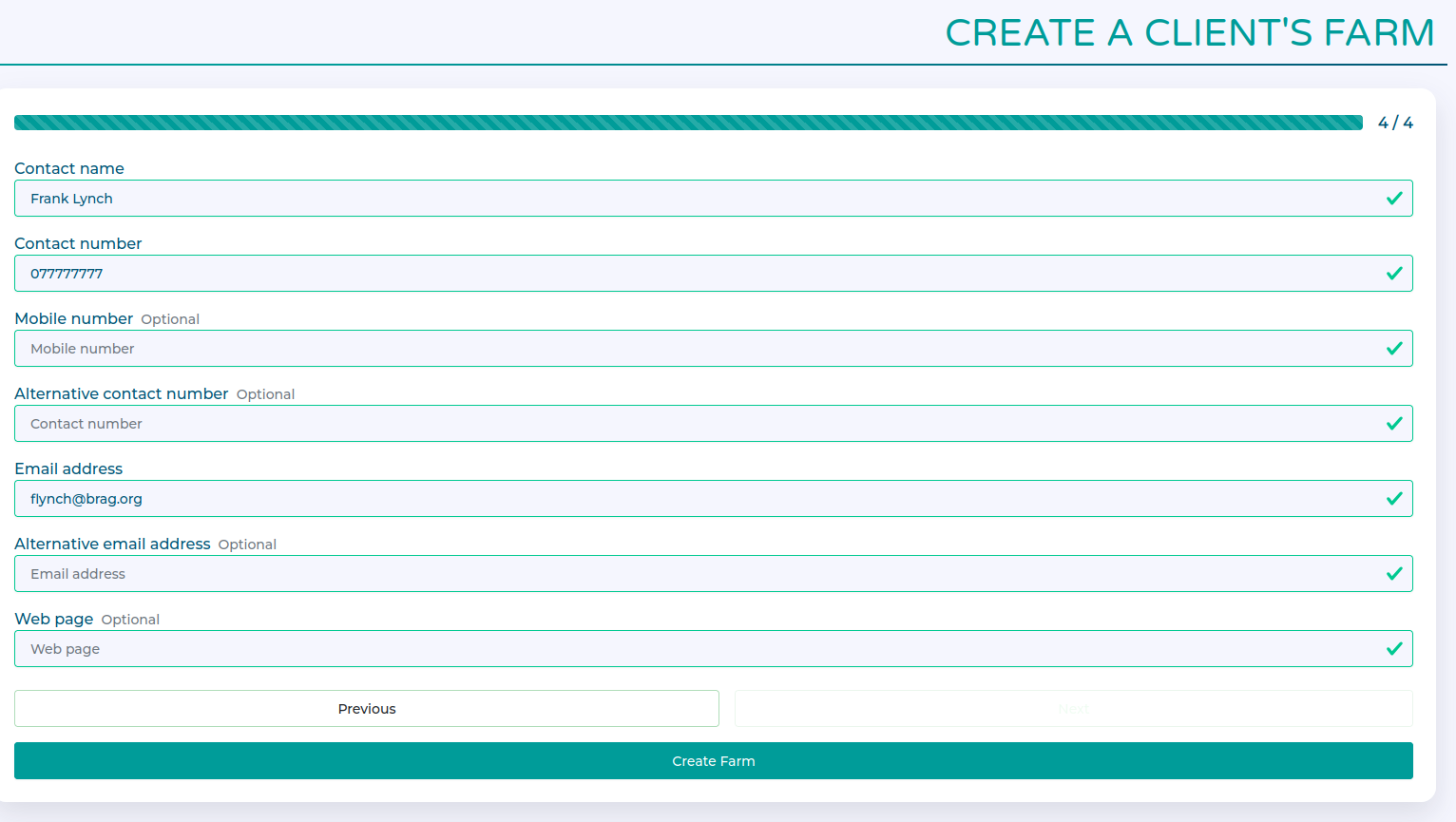
This form guides you through setting up a client account and a Farm on their behalf. Note that this sets up a new contract.
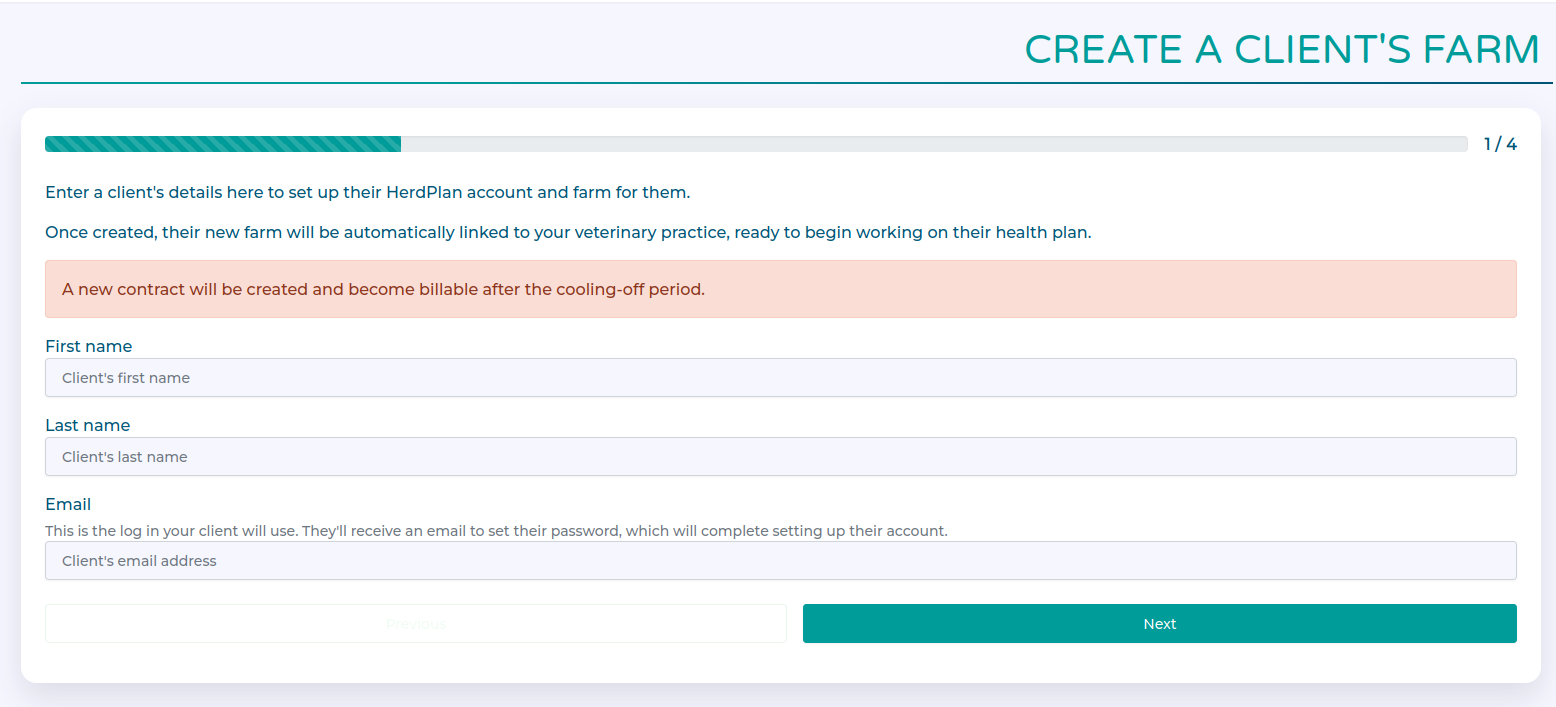
Complete the client's contact details
Complete the details about the Farm
Complete the details about the Farm address
Complete the contact details for the Farm
Creating a client township
Begin by clicking Create... then the Create a Client Township button.
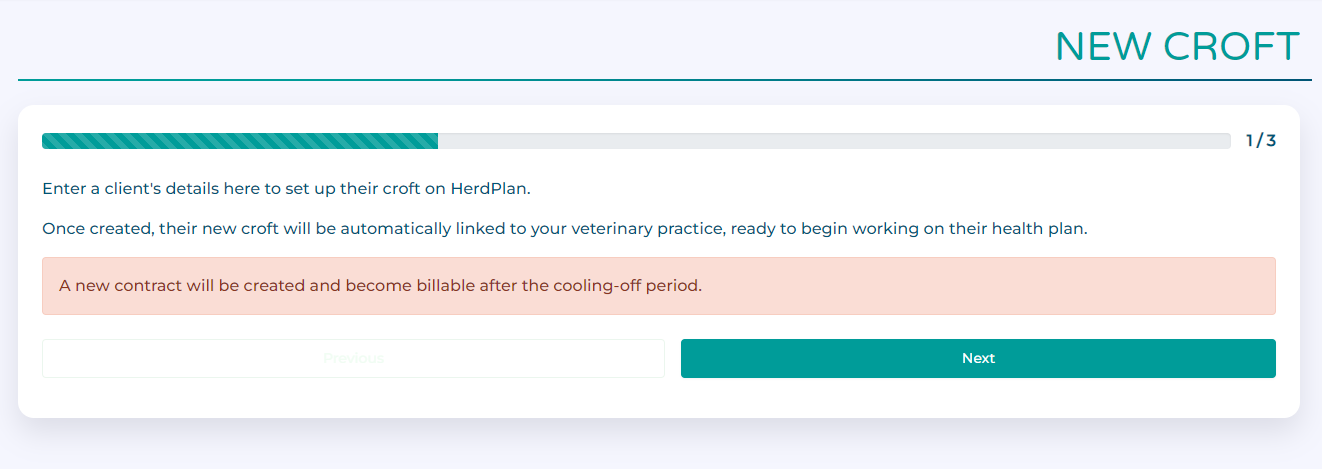
This form guides you through setting up a township to manage the health plan of a group of crofters. Note that this sets up a new contract.
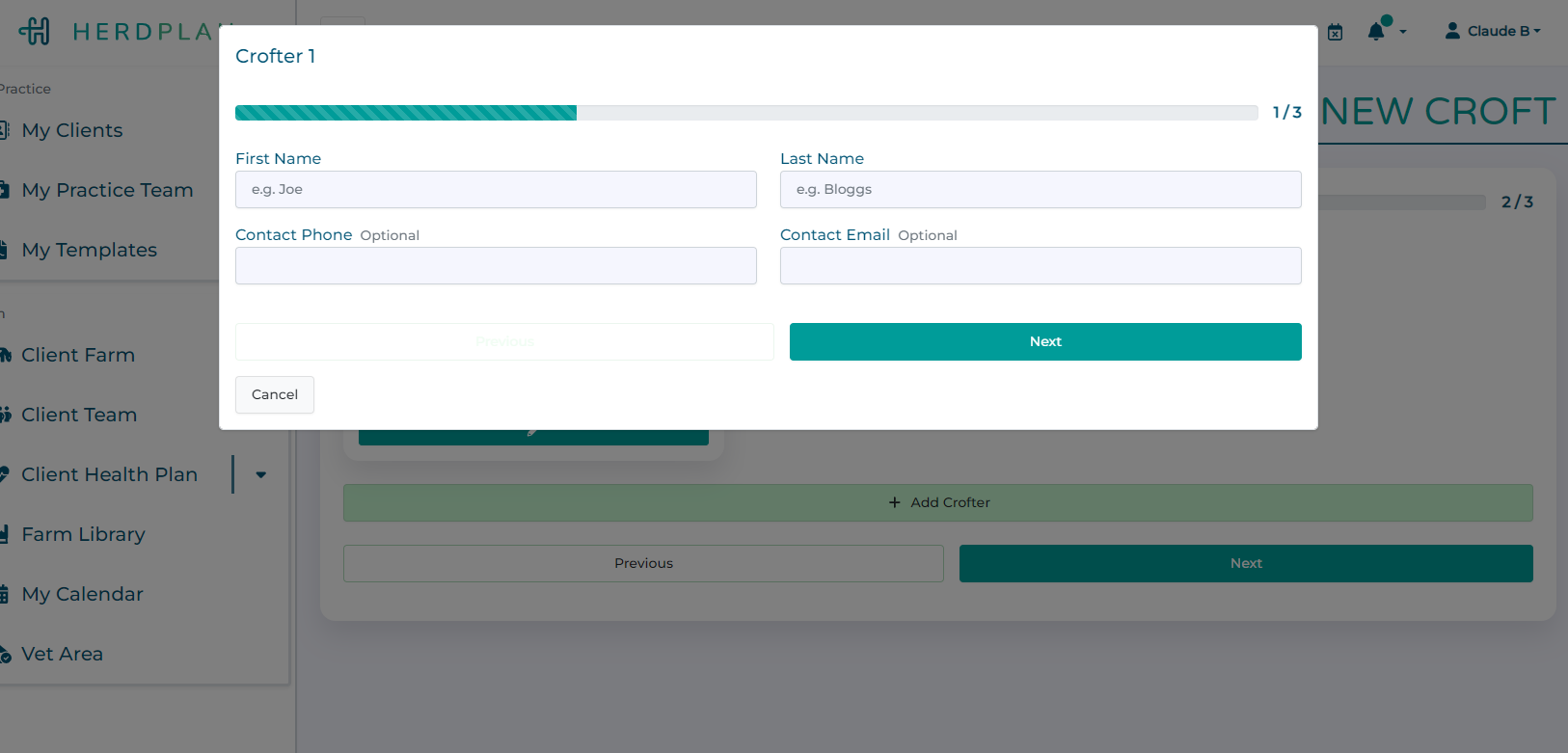
You are required to add at least one crofter to the township. Click Add Crofter and fill in their details. At least one contact method, either phone or email, is required.
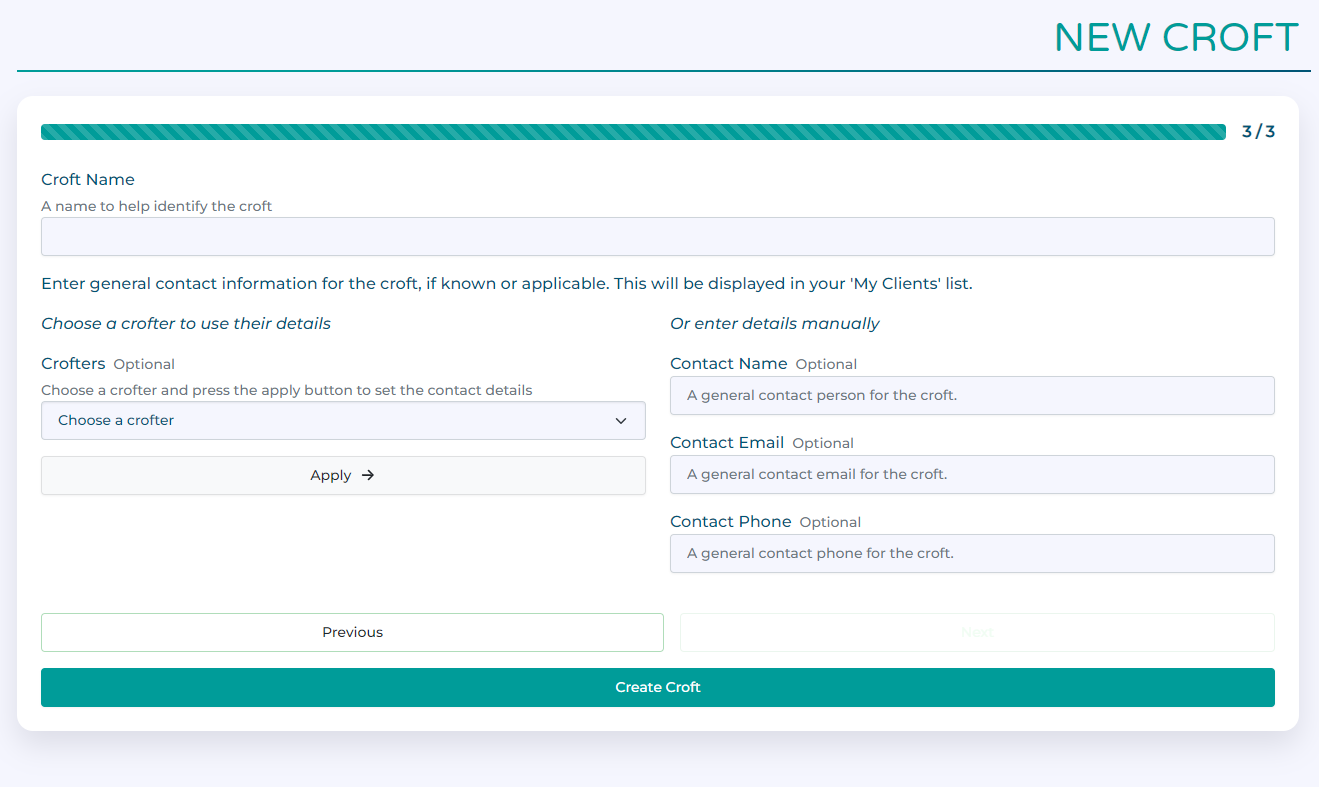
On the final page, enter a township name to help you identify it in the system. Optionally, you can add general contact details for the township which will be displayed in the My Clients list. These can be entered manually or can be quickly copied over from one of the crofters.