Claiming a practice
If you were invited into a Practice that already exists, then you can accept the invitation to link your account to the practice.
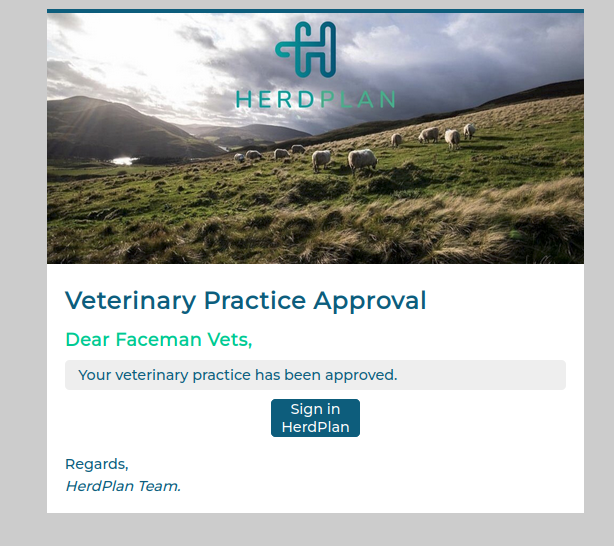
If your practice hasn't yet been claimed in HerdPlan you will have to claim a practice.
Workflow
Responding to an invitation
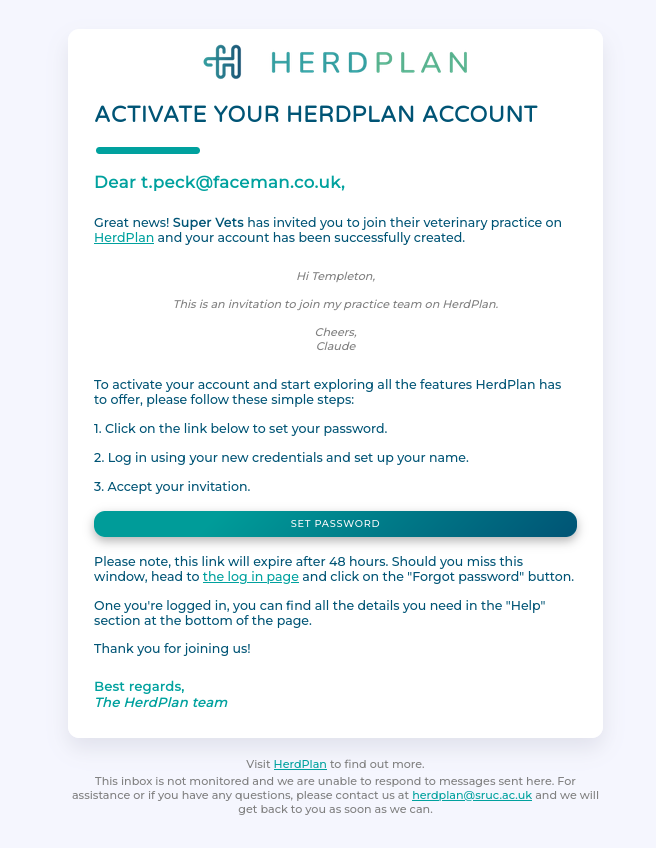
If you have received an email inviting you to a practice, click on the link in the email to begin.
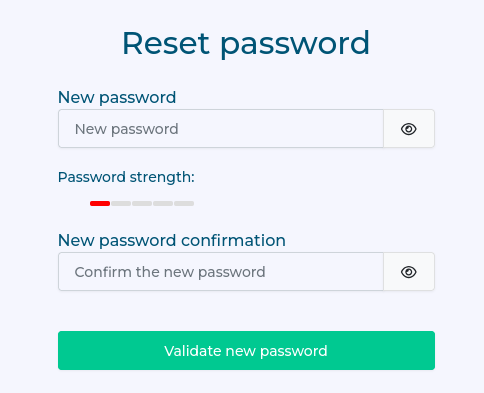
You will be asked to set a password for your account.
Once you have set up a password you can log in with your email address and password.
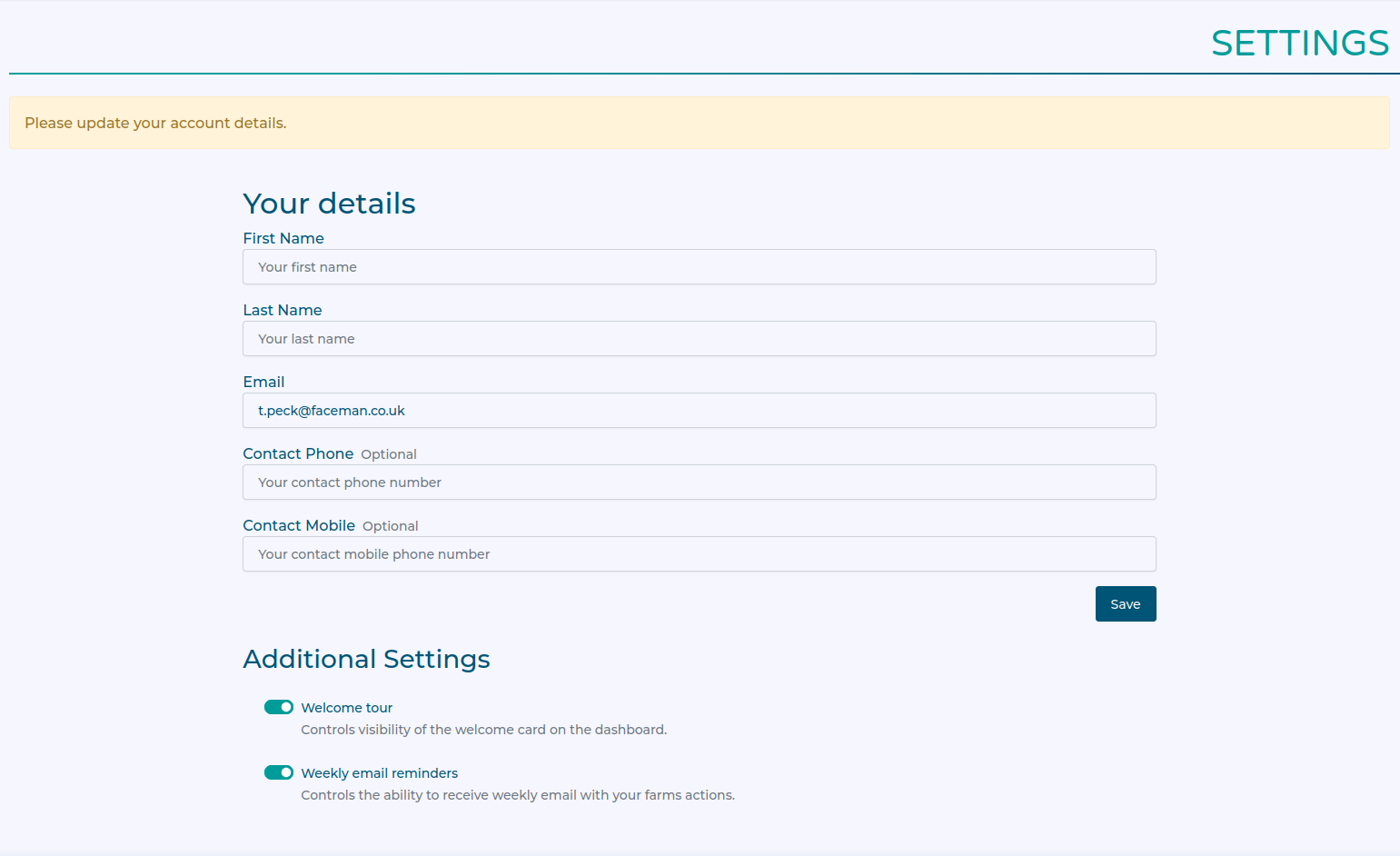
On this initial log in, you will be asked to update your account settings. Don't worry, you can always change this later from account settings.
You will see your invitation in the "Your Invites" card on the dashboard.
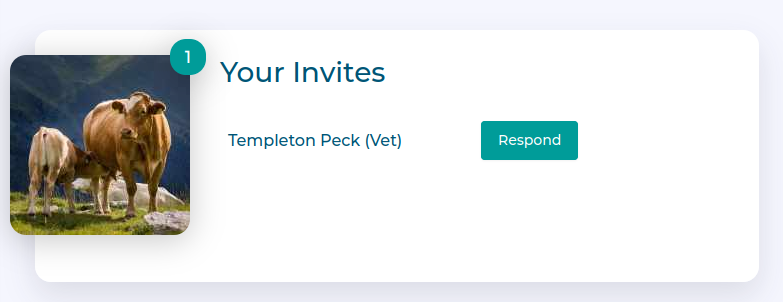
Clicking respond will show more information about the organisation and who has invited you.
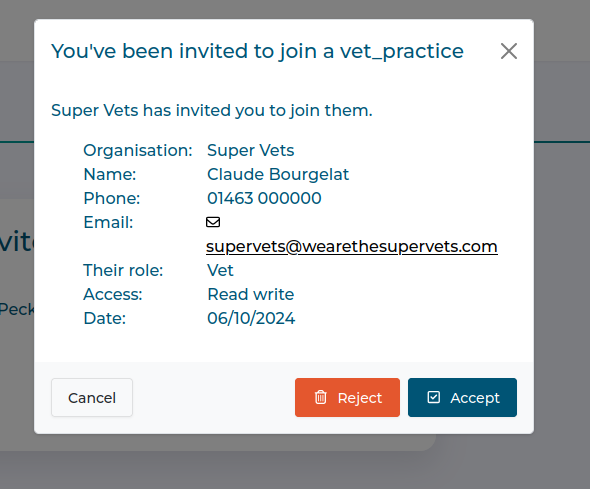
You can "Accept" the invitation to join the organisation, "Reject" to cancel the invitation entirely, or 'Cancel' and come back later.
Claiming a practice
Click on 'Find my practice'

Search for your practice either by name or postcode.
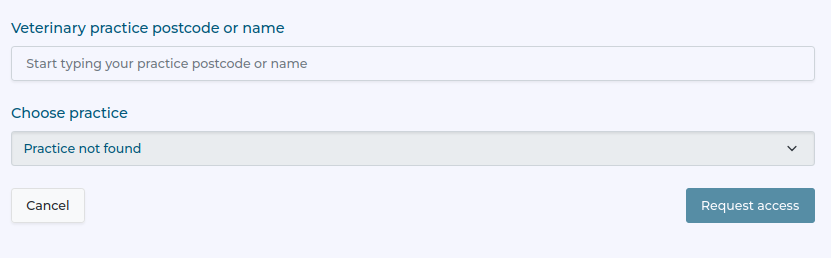
Once you have identified your practice, select it and push 'Request Access'
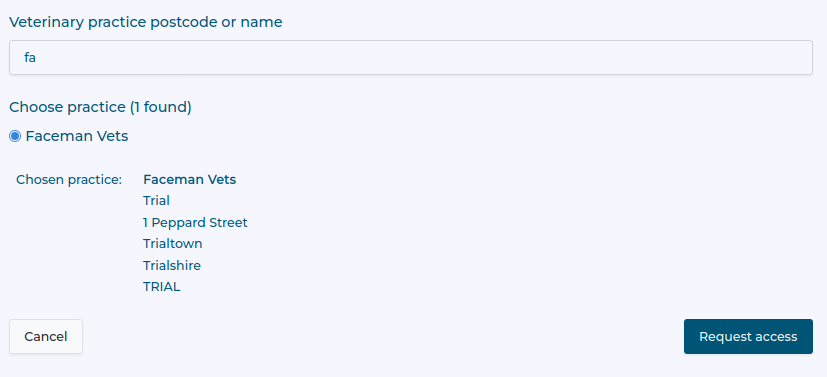
The HerdPlan team will verify that you can claim the practice before approving your request.