Vet Area for Vets
The Vet Area allows your practice to report on activities such as signing off health plans, recording site visits and so forth. Your Clients will see the status
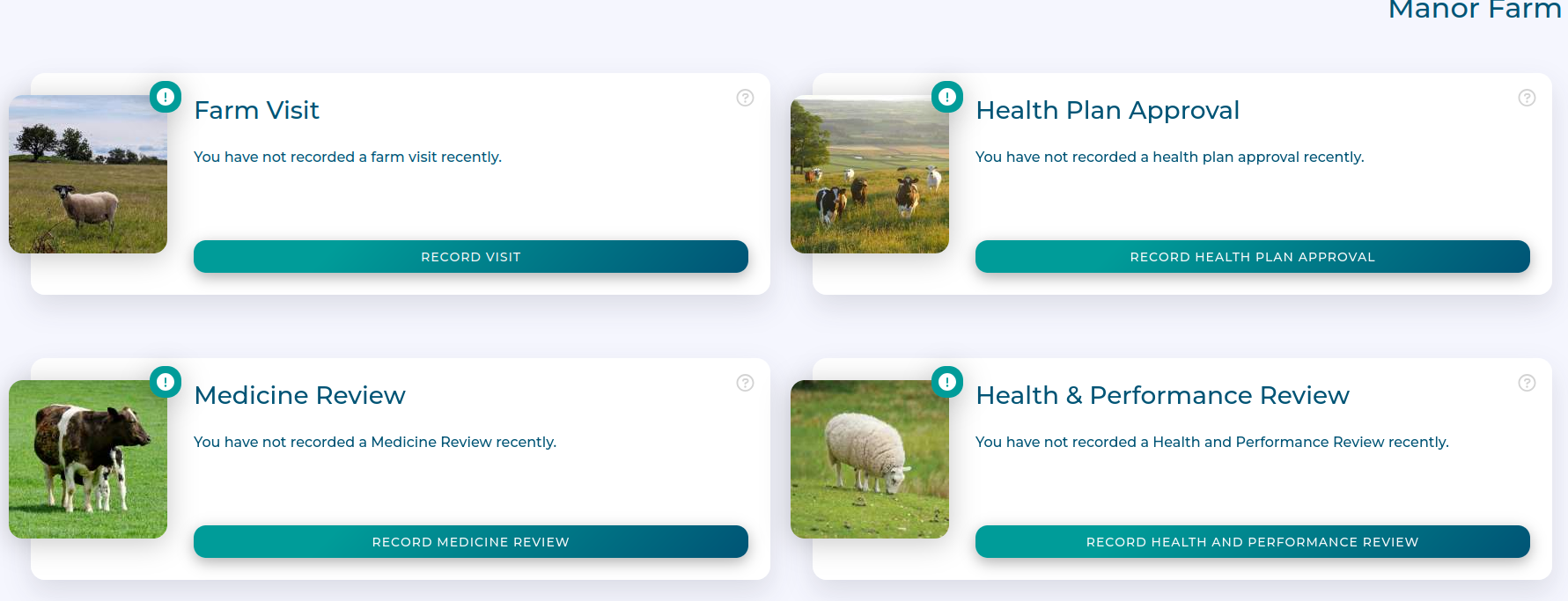
Workflow
Recording Farm Visits
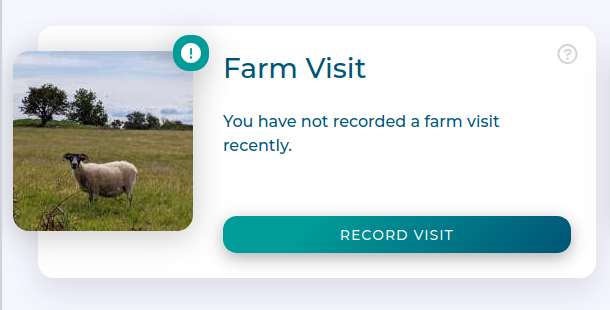
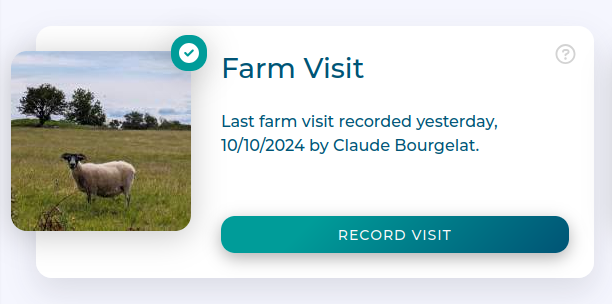
Click Record Visit on the card.
This brings up the site visit dialogue.
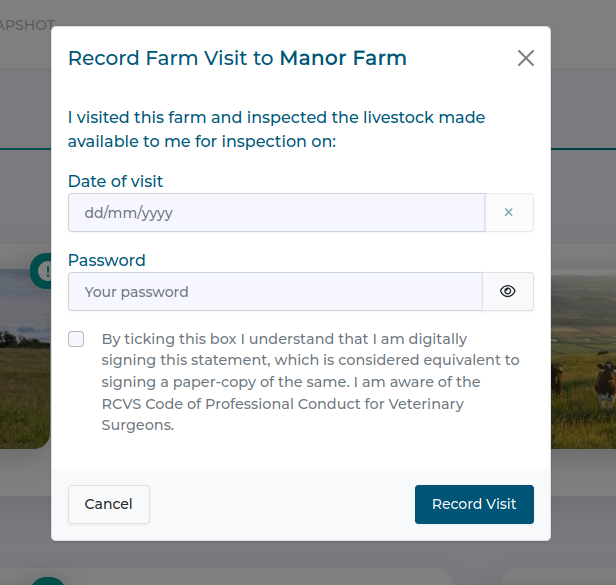
Records the date of visit, check the confirmation box, and enter your password. This helps ensure the identity of the user making the visitation statement.
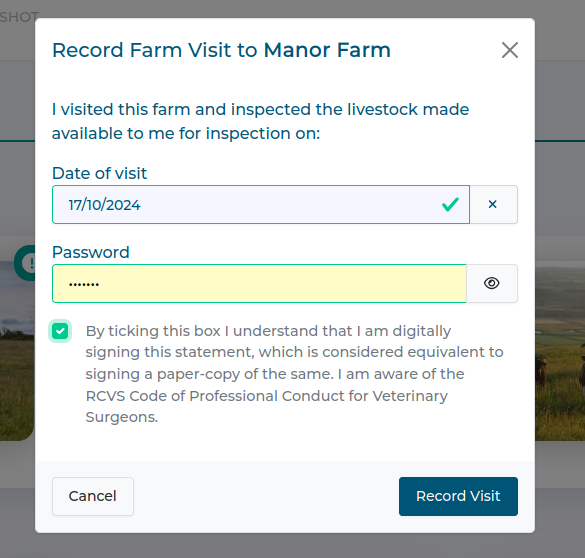
Once the form is complete, hit Record Visit
The visit is now recorded against the client farm.
Health Plan Approval
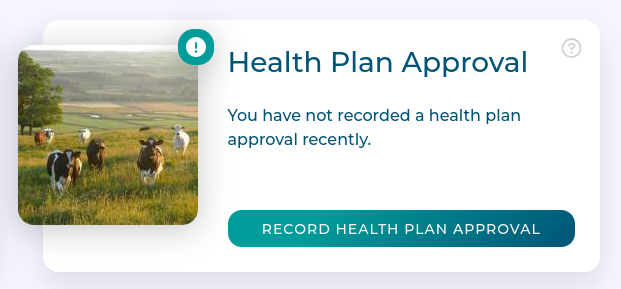
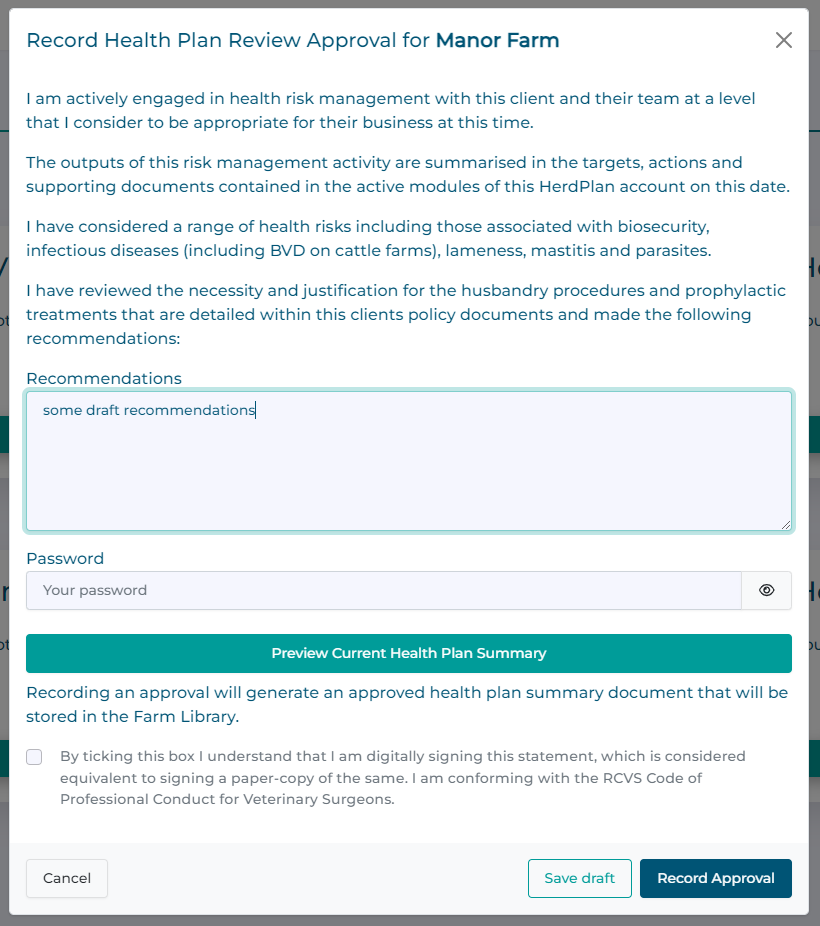
Click Record Health Plan Approval on the card.
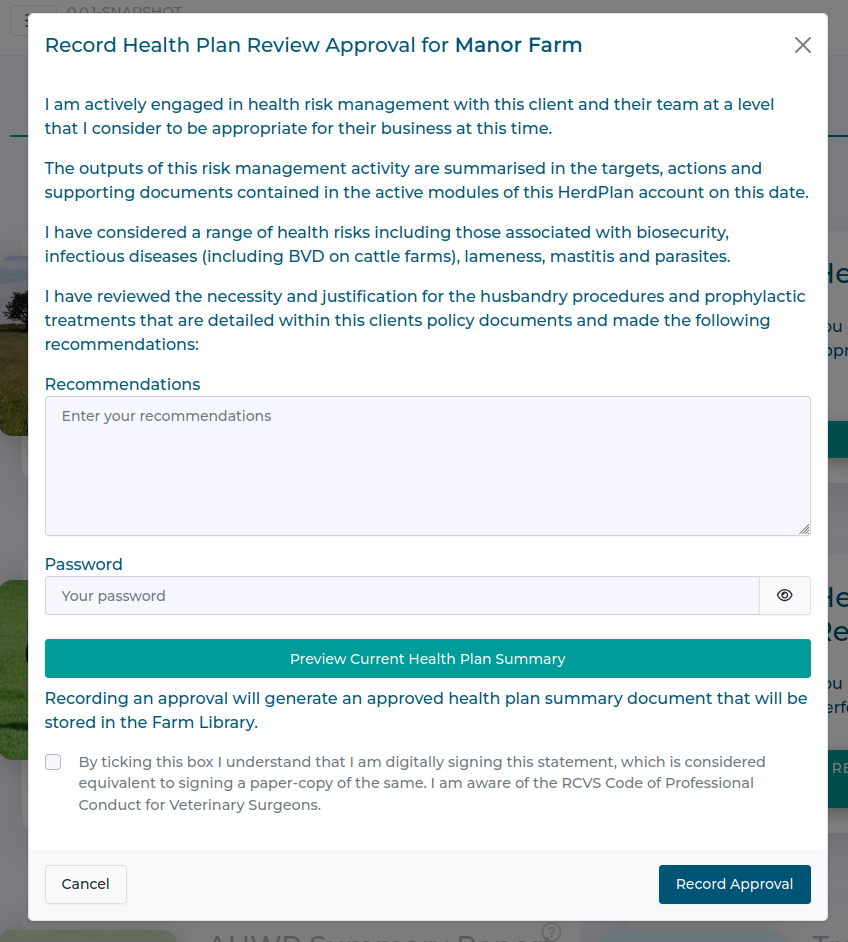
Record any recommendations based on the health plan review, check the confirmation box, and enter your password.
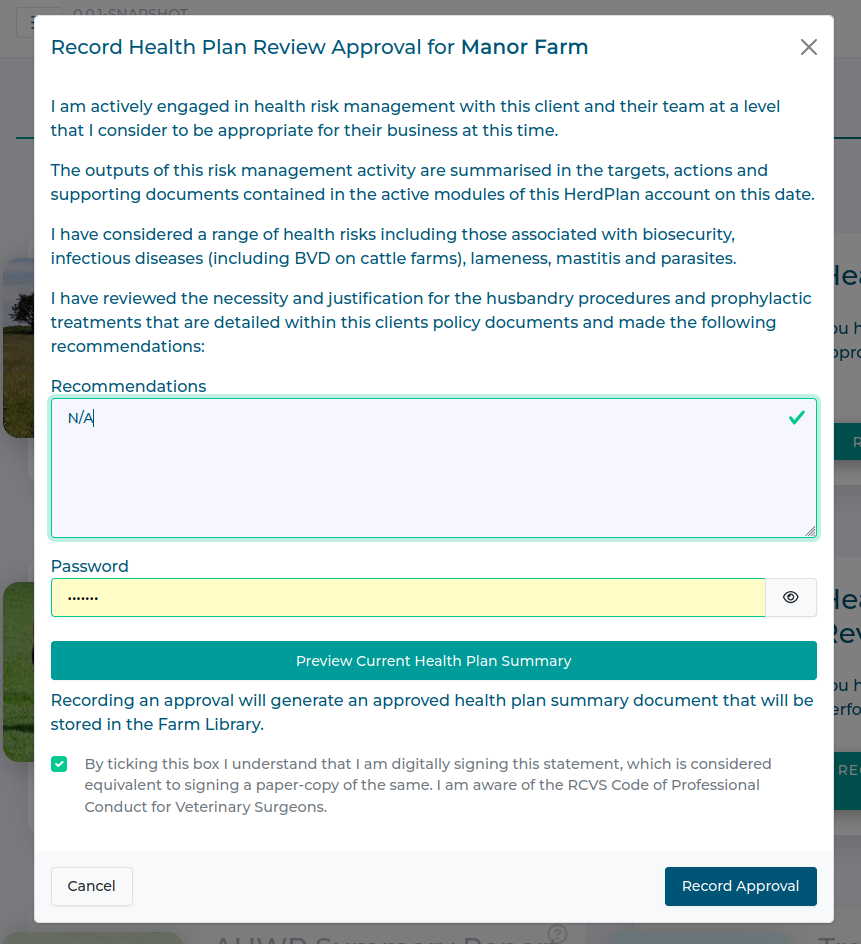
Once complete, hit Record Approval to submit the approval statement.
Medicine Review
Click Record Medicines Review on the card.
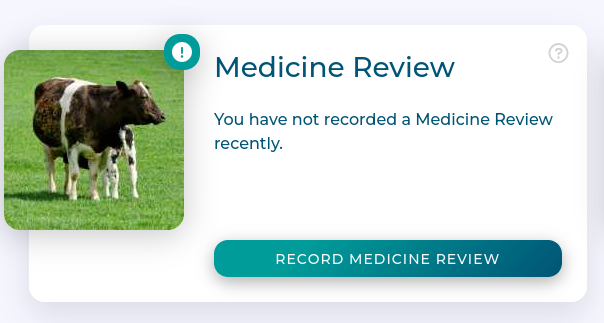
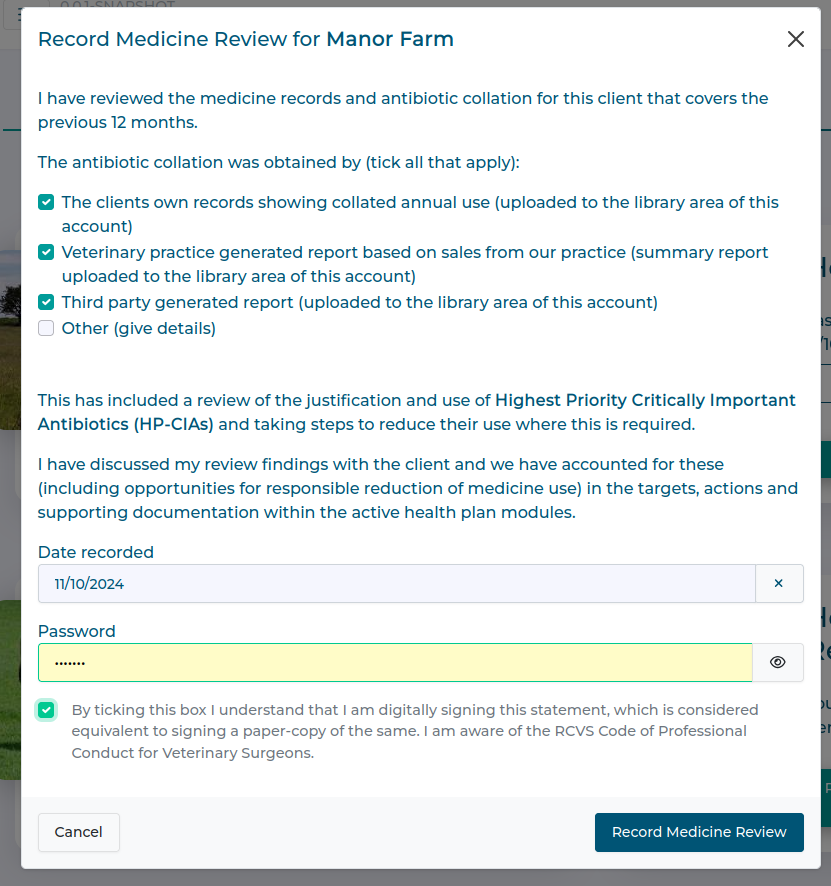
Review and check any statements that apply to the medicine review. Select the date of the review, check the confirmation statement box, and enter your password. This helps ensure the identity of the user making the review statement.
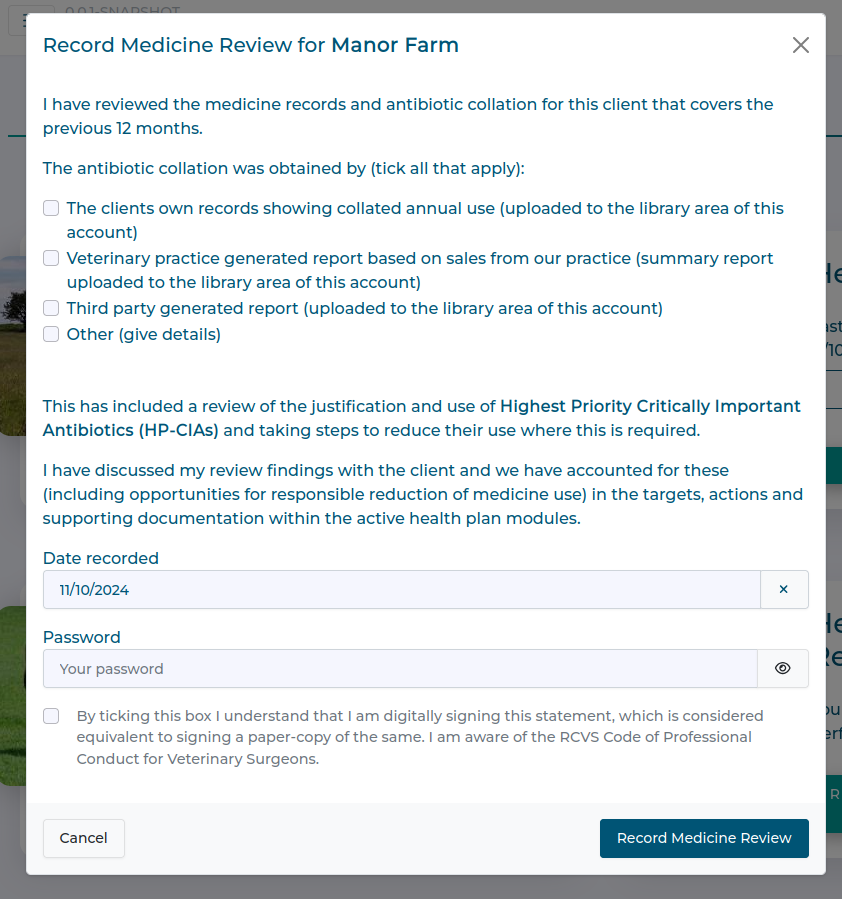
Once complete, hit Record Medicines Review to submit the review.
Health and Performance Review
Click Record Health and Performance Review on the card.
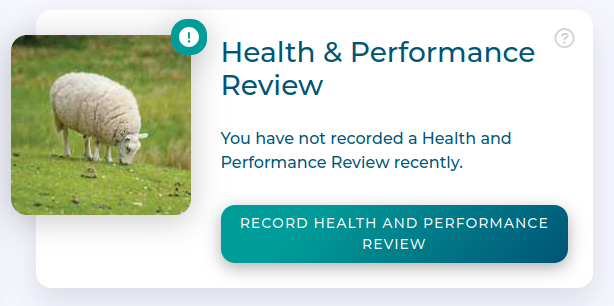
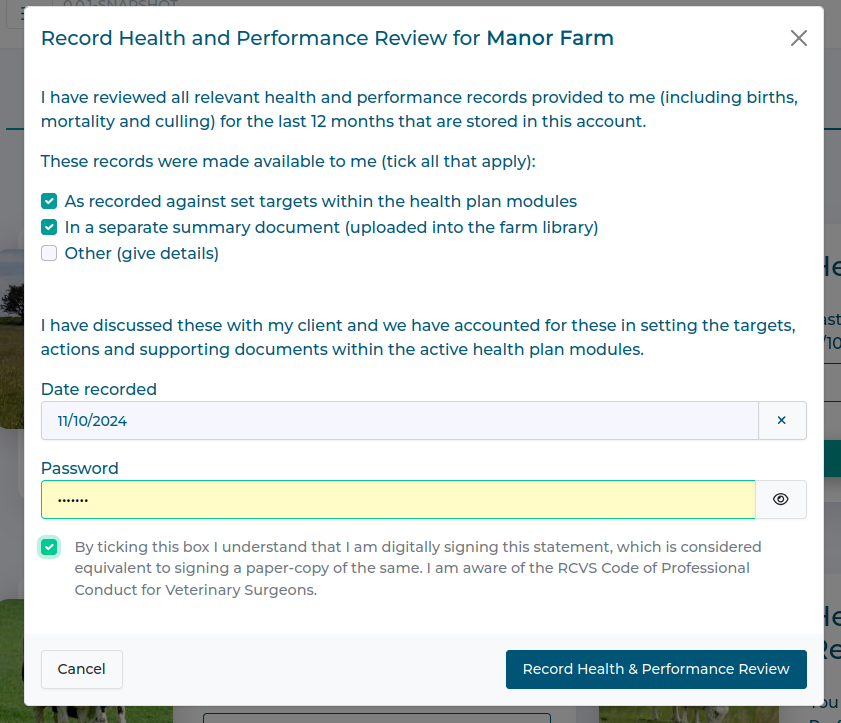
Review and check any statements that apply to the Health and Performance review. Select the date of the review, check the confirmation statement box, and enter your password. This helps ensure the identity of the user making the review statement.
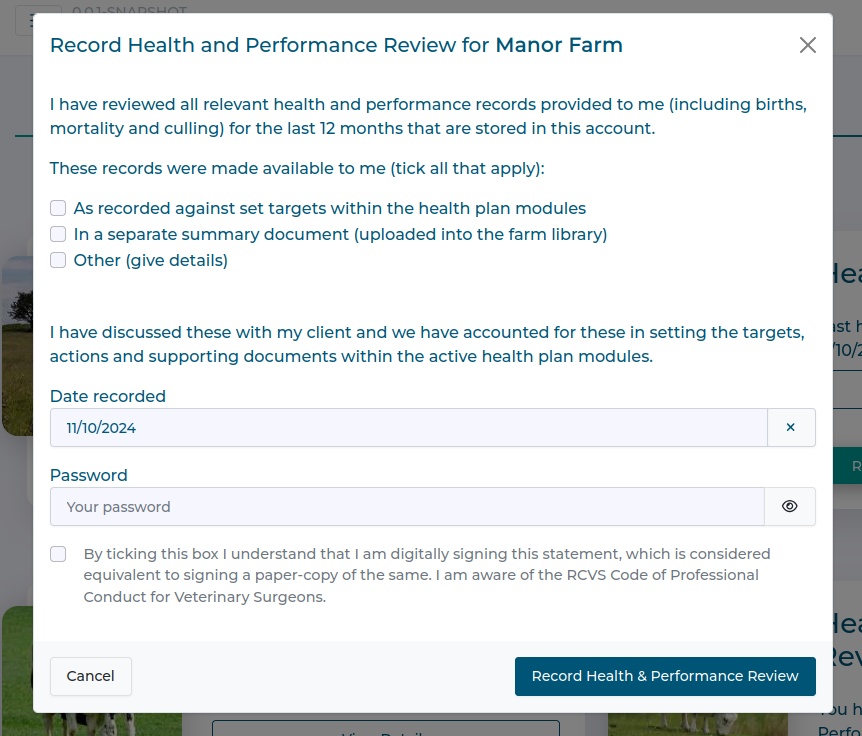
Once complete, hit Record Health and Performance Review to submit the review.
Draft Health Plan Approval
A Health Plan Approval can be saved as a draft so that recommendations can be updated on an ad-hoc basis until ready to submit. Only one draft can be saved at a time.
Health Plan Approval Draft
Add some recommendations to a new approval and press the Save draft button. You can now exit this form should you wish.
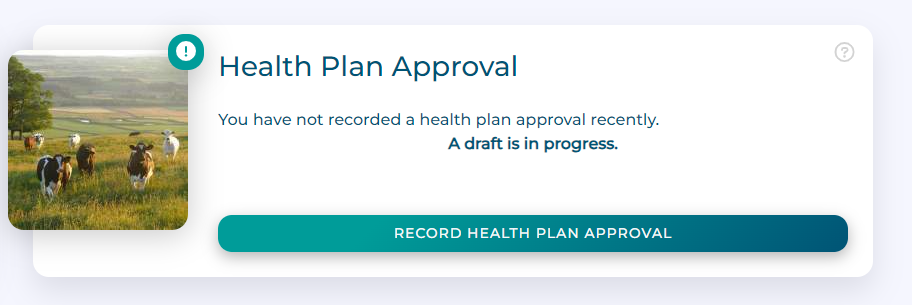
The Health Plan Approval card will update to indicate a draft is in progress
Drafts can be updated as often as required and by any vet user with the appropriate access. When complete, follow the instructions above to submit the finalised approval statement.